Adaptive Theme Colors · Auto-desaturated · Chinese / English
If you find this plugin useful, a ⭐ would mean a lot — thank you!





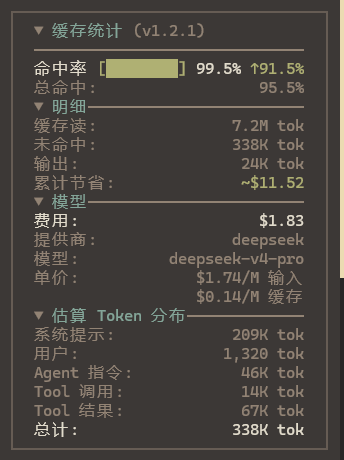
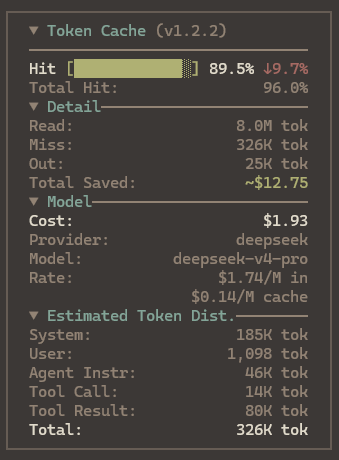
- Cache Hit Rate: Real-time hit rate with adaptive-width progress bar and trend indicator
- Token Detail: Cache read / write / miss / output, left-aligned labels, right-aligned values
- Cost & Savings: Session cumulative cost plus cache-hit savings
- Model Pricing: Input / cache-read / cache-write per-million rates (read from provider config dynamically)
- Collapsible: Main title collapsed by default; click to expand. Detail, model, and distribution sections fold independently
- Adaptive Colors: ≥85% green · ≥70% orange · <70% red, auto-desaturated from current theme
- Token Distribution: Per-role (system / user / agent instr / tool call / tool result) estimated token breakdown
- Persistent State: Fold preferences and config remembered across restarts via api.kv
- Language: Auto-detects system locale, with
/cache-langfor runtime switching between Chinese and English — preference persisted across restarts - Multi-currency: Switch via
/cache-currency— costs, savings, and per-million rates convert in real time - Slash Commands:
/cache-rate/cache-section/cache-config/cache-langfor live panel configuration - Loaded Skills: Detects
skilltool calls in the session and displays loaded skill names with estimated token footprint
Press Ctrl + P in OpenCode to open the command palette, search install plugin, then type:
opencode-visual-cache@latest
Press Enter to install and configure automatically.
1. Install the plugin
npm install -g opencode-visual-cache@latest2. Configure TUI plugin
Create or edit ~/.config/opencode/tui.jsonc:
Open any session — the cache stats panel appears in the sidebar.
The plugin supports slash commands and command palette (Ctrl + P) for runtime configuration. All changes take effect immediately and are persisted:
| Command | Function | How to use |
|---|---|---|
/cache-currency |
Switch currency | Pick from a list (USD / CNY / EUR / JPY / GBP / KRW); default exchange rate auto-filled |
/cache-rate |
Adjust exchange rate | Enter a custom rate (e.g. 7.2 for CNY) |
/cache-section |
Toggle sections & border | Independently show/hide Detail, Model & Pricing, Token Distribution, Loaded Skills, or the panel border |
/cache-config |
View current config | Displays currency, rate, and section visibility |
/cache-lang |
Switch display language | Pick Chinese or English from the dialog — takes effect immediately, no restart needed |
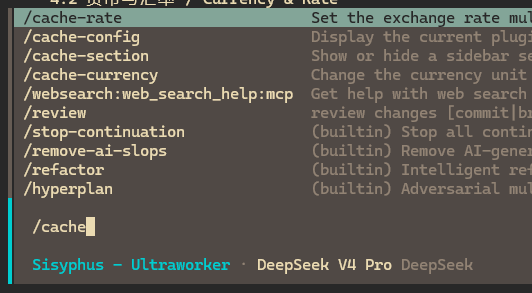
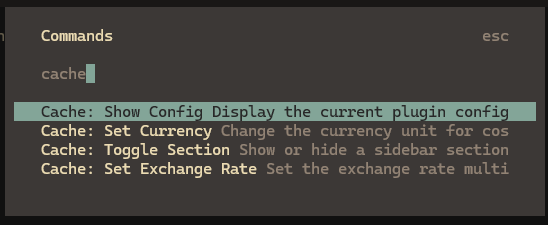
Switching currency automatically applies a built-in approximate exchange rate (USD-based). Override it anytime with /cache-rate.
Cost display supports multiple currencies:
| Code | Symbol | Default rate (1 USD = ?) |
|---|---|---|
| USD | $ |
1 |
| CNY | ¥ |
7.2 |
| EUR | € |
0.92 |
| JPY | JP¥ |
150 |
| GBP | £ |
0.79 |
| KRW | ₩ |
1350 |
The rate applies to session cost, cache savings, and per-million pricing — consistently across the panel.
Base currency: The plugin assumes all provider pricing is in USD. Major AI APIs (OpenAI / Anthropic / Google / DeepSeek / xAI etc.) use USD for their international endpoints. If your provider bills in CNY or another currency, set the exchange rate to
1.
Three sub-sections can be toggled independently to save sidebar space:
- Token Detail: cache read / write / miss / output
- Model & Pricing: cost / provider / model name / per-million rates
- Estimated Token Dist.: per-role token breakdown
- Loaded Skills: skill names the LLM actually loaded via the
skilltool, with estimated token counts
Toggled via /cache-section — takes effect instantly, no restart required. The same command also toggles the panel border; turning it off removes the outline and padding so content fills the full width.
Due to a known OpenCode issue #6774, the plugin cache locks to the version installed at first setup and does not auto-detect newer releases on npm.
To update:
1. Clear the OpenCode plugin cache
# Windows
Remove-Item -Recurse -Force "$env:USERPROFILE\.cache\opencode\packages\opencode-visual-cache@latest"# macOS / Linux
rm -rf ~/.cache/opencode/packages/opencode-visual-cache@latest2. Re-install the plugin
Press Ctrl + P in OpenCode → install plugin → opencode-visual-cache@latest → Enter
3. Restart OpenCode
The plugin provides three ways to control the display language, listed by priority (highest first):
Type /cache-lang in the TUI and select Chinese or English from the dialog. The panel switches immediately without restarting, and your preference is persisted automatically for the next session.
Set the CACHE_TUI_LANG environment variable before launching to force a specific language:
# Windows PowerShell
$env:CACHE_TUI_LANG="en"; opencode# macOS / Linux
CACHE_TUI_LANG=en opencodeDefaults to the system locale automatically. If it doesn't match, switch once with /cache-lang and the preference will be remembered.
Model-agnostic — works with all OpenCode-compatible AI models (DeepSeek / Claude / GPT etc.). Token data and pricing are read via OpenCode SDK standard interfaces.
MIT
{
  "$schema": "https://opencode.ai/tui.json",
  "plugin": ["opencode-visual-cache@latest"]
}