Go back to the main README.
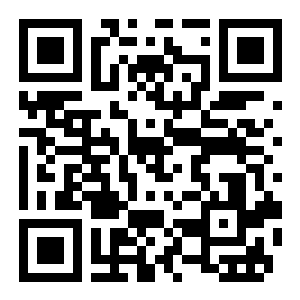
The AR Try-On feature allows users to virtually try on shoes, bags, and backpacks in real-time using their mobile device's camera. It can be accessed via a direct link or by scanning a QR code.


Scan the AR code below or click this link on your mobile device: https://wearfits.com/demo-tryon
Check out our new solution for AR Shoes Try-On: Automatic 3D Model Generation from Photos
- Drag and drop your 3D shoe model (or use our automatic photo to 3D converter).
- Copy the created link or QR code and share the try-on experience anywhere you like.
- Fully automate the process via API for large volumes.
💡 The process of model positioning and occluder creation is automated!
| Endpoint | Description |
|---|---|
/tryon |
Provides the footwear AR Try-On experience. May be used as a direct link or via QR code. Currently supports product types such as shoes, bags, and backpacks. Additional parameters are described below. |
/tryon/dev |
Currently developed version with new functionalities. Do not use in production environment. |
💡 Utility tool allowing for changing camera, quality, and mirroring options may be displayed by clicking 4 times in the top right corner of the Try-On Viewer.
| Parameter | Type | Description | Accepted Values | Default Value |
|---|---|---|---|---|
object (required) |
string |
Specifies the object ID or URL to the 3D model (.glb) - it can be set also via postMessage ℹ️ Use object=null when loading object via postMessage load_object |
Any valid URL or object ID | null |
color |
string |
Colorset ID of the object | Any valid color name | null |
res |
string |
Specifies the resolution of the camera input. Can be one of: vga, hd, fhd, qhd, uhd, 4k, or a custom resolution like 1920x1200 |
Any valid resolution string | fhd |
| Parameter | Type | Description | Accepted Values | Default Value |
|---|---|---|---|---|
mm |
number |
Enables the Mirror Mode with chosen quality (use for digital screens only, not for mobile devices!) | 1 (basic mirror mode), 2 (hand detection, no masks), 3 (variant of 5), 4 (masking, no hands), 5 (hand & masking), 6 (masking beta, no hands yet) |
0 (not Mirror Mode) |
camera_id |
string |
Specifies the camera device ID | "string" |
null |
flip_x |
number |
Specifies if the camera input on the x axis should be flipped |
0 or 1 |
0 |
flip_y |
number |
Specifies if the camera input on the y axis should be flipped |
0 or 1 |
0 |
rotated |
number |
Specifies if the camera input should be rotated | 0 or 1 |
0 |
| Parameter | Type | Description | Accepted Values | Default Value |
|---|---|---|---|---|
pose |
number |
Enables try-on of bags, backpacks, and garments (do not use for shoes) | 0 or 1 |
0 |
calibration_data |
string |
Calibration data (base64 encoded), used for bags (pose=1) | Valid base64 string | null |
user_height |
number |
User height (cm) for accurate bag/backpack size calibration - it can be set also via postMessage |
e.g. 165 |
null |
no_height_selector_ui |
number |
Disables Wearfits height selector UI (it still displays camera output but no heavy processing is done till user height is provided) | 0 or 1 |
0 |
| Parameter | Type | Description | Accepted Values | Default Value |
|---|---|---|---|---|
banner_text |
string |
Banner text | Any string | null |
banner_url |
string |
Banner URL | Valid URL | null |
banner_icon |
number |
Banner icon | 0 or 1 |
null |
colorlist |
number |
Shows color list | 0 or 1 |
0 |
loop |
number |
Loops animation (used by animated objects) | 0 or 1 |
0 |
no_ui |
number |
Hides all UI elements (set when using custom interface and postMessage communication) |
0 or 1 |
0 |
noloader |
number |
Hides loader | 0 or 1 |
0 |
show_snapshot_button |
number |
Shows snapshot button | 0 or 1 |
0 |
show_back_button |
number |
Shows back button | 0 or 1 |
0 |
sound |
string |
URL of sound to play | Valid URL | null |
| Parameter | Type | Description | Accepted Values | Default Value |
|---|---|---|---|---|
quality |
string |
Sets the rendering quality | low, medium, high, auto |
auto |
pose_quality |
number |
Sets pose detection quality (use with pose=1) | 1 (low), 2 (med), 3 (high - do not use on mobile devices) |
2 |
ml_model_url |
string |
URL to the ML model in JSON format | Any valid URL or small, medium |
null |
tf_backend |
string |
Forces the AI backend to use | webgpu*, wasm, or webgl |
null (auto selected) |
nocamera |
number |
Disables camera and uses video as input | 0 or 1 |
0 |
debug_video_clip |
string |
Debug video clip (used with nocamera=1) | Valid URL | null |
native_ml_version |
string |
Native ML version to use | Valid version string | null |
object_scale |
number |
Object scale | Any positive float | 1.0 |
object_collection_id |
string |
Group ID used in demo. Allows user to change shoes within the group by swiping left or right. Group of models is defined by admin | null |
|
object_carousel_interval |
number |
Used with object_collection_id, automatic shoe rotation time in seconds | Positive integer | null |
fps |
number |
FPS limit | Positive integer | null |
zoom |
number |
Camera zoom | Positive integer | 100 |
set_crop_region_from_pose |
number |
Sets crop region from pose | 0 or 1 |
1 |
hide_one |
number |
Hides shoes if only one foot is detected | 0 or 1 |
0 |
compose_method |
string |
Composition method; changing may increase performance | "canvas", "scene", or "shader" |
"canvas" (auto selected) |
masks |
number |
Controls masking behavior (used for shoes): 0 (disable masks), 1 (automatic use masks on supported devices), 2 (force masks enabled on all devices) | 0, 1, or 2 |
1 |
device_info |
number |
Displays device information, fps and resolution used | 0 or 1 |
0 |
settings |
number |
Displays settings window (use for development only) | 0 or 1 |
0 |
masking_model_url |
string |
Path to JSON to select different segmentation model for shoe masking | Any valid URL | null |
iframe_mode |
number |
Use for URL in IFRAME implementation. It does not enable the camera (it is not computing) and does not load the default product. Use enable_camera via postMessage to start and stop the camera. |
0 or 1 |
0 |
💡 webgpu mode offers the best performance but is not supported on all devices yet (iOS is supported from iOS 26).
Below, we explain how to communicate with the try-on app implemented via an IFRAME using postMessage. The IFRAME integration can be used in two main scenarios:
-
Embedding Try-On in Custom Web Apps:
Wrapping the WEARFITS try-on app inside an IFRAME lets you build your own custom UX, interface, or control elements around the core try-on experience. This approach is suitable when you want to apply your web app's styles, add unique flows, or interact with the IFRAME using thepostMessageAPI for advanced controls (see below for message examples). -
Digital Mirror Installations:
The IFRAME can also be used to embed the try-on app in digital mirror settings, such as a large screen with a connected camera in a brick-and-mortar retail space or digital signage environments. In this case, the app runs either in a browser or kiosk mode and provides a real-time virtual try-on experience to shoppers.
For digital mirror mode, ensure you add themmparameter to the IFRAME URL (see documentation above) to enable features specifically designed for these environments, such as simplified user flow and on-screen mirror calibration.
This flexibility allows you to create both rich, branded try-on web integrations and robust in-store digital mirror experiences with the same WEARFITS try-on platform.
Digital Mirror Examples:
- CodePen: https://codepen.io/wearfits/pen/poMjQOz
- GitHub: examples/14-wearfits-digital-mirror-communication.html
All parameters from the API section above may be used, but there are also additional parameters available for digital mirror mode:
| Parameter | Type | Description | Accepted Values | Default Value |
|---|---|---|---|---|
settings |
number |
Allows for displaying mirror mode settings by 4-click in top-right corner | 0 or 1 |
1 |
calibration |
number |
Displaying simplified settings for mirror calibration only | 0 or 1 |
0 |
Communication between the web app and the digital mirror in an IFRAME is done using the postMessage API for sending messages to the IFRAME and receiving events.
Sending messages to the IFRAME:
-
Get a reference to the IFRAME's content window:
const tryon_iframe_element = document.getElementById('tryon_iframe').contentWindow;
-
Use
postMessageto send a message:tryon_iframe_element.postMessage(JSON.stringify(message), "*")
where
messageis an object withnameanddataproperties (examples below).
Available commands:
-
Load an object (e.g., a shoe) model:
{ "name": "load_object", "data": "<id>" }- Add to IFRAME URL param
&object=nullwhen loading object via postMessageload_object - You can combine the object ID and color name using the format
<id>~<color>to load an object in a specific color with a single message (e.g.,"12345678~red").
- Add to IFRAME URL param
-
Change color:
To change the color, use the
load_objectmessage as described above, and specify the desired color name together with the object ID in the format<id>~<color>. -
Enable/disable camera (can be
0or1):{ "name": "enable_camera", "data": 0 } -
Set tryon config:
{
    "name": "set_option",
    "key": "<config_key>",
    "value": "<config_value>"
}
For example, to set the user's height:
const message = {
    name: "set_option",
    key: "user_height",
    value: <value>,
}

postMessage(JSON.stringify(message), "*”);
Hand detection area configuration:
const message = {
    name: "set_option",
    key: "detector_positions",
    value: [
        {
            left: "1vw",
            top: "49vh",
            width: "7vh",
            height: "7vh",
        },
        {
            right: "2.5vw",
            top: "49vh",
            width: "7vh",
            height: "7vh",
        },
    ],
}

tryon_iframe_element.postMessage(JSON.stringify(message), "*")
Receiving messages from the IFRAME:
- Add an event listener for the 'message' event on the window object.
- Check if the message source is the IFRAME.
- Parse the event data (it's a JSON string).
- Handle the event based on its name.
Available events from the IFRAME:
| Event Name | Description | Data Type |
|---|---|---|
loadingProgressHandler |
Triggered during app load | Loading progress percentage (int) |
loadingFinishedHandler |
Triggered when the app is loaded | null or an error code (int) |
objectLoadingProgressHandler |
Triggered during object loading | Object loading progress percentage (int) |
objectLoadingFinishedHandler |
Triggered when the object finishes loading | An object; error field is missing if the object is loaded successfully { id: string, error: int } |
shoesVisibilityChangedHandler |
Triggered when feet visibility changes | A boolean indicating visibility |
objectVisibilityChangedHandler |
Triggered when object visibility changes (true when positioned and displayed/anchored) | A boolean indicating visibility |
heightSelectorVisibilityChangedHandler |
Triggered when height selector UI visibility changes | A boolean indicating visibility |
userHeightSelectedHandler |
Triggered when user selects height in height selector UI | Height in cm (int) |
detectorStateChanged |
Triggered when left or right hand enters or leaves the detection area | data: { index: <0 - left detector, 1 right detector>, value: <true or false> } |
calibrationParameter |
Triggered when Save button, after bag size calibration, is pushed |
{ name: "calibrationParameter", data: "&calibration_data=<...>" } |
| Error Code | Error Message | Error Description |
|---|---|---|
1 |
Unknown error | Any other errors not listed below |
10 |
Camera error | Camera undefined error |
11 |
Camera not found | Camera not found |
12 |
Camera disabled in browser | navigator.mediaDevices.getUserMedia is undefined |
13 |
Camera permission denied | Camera permission denied |
14 |
Camera error | Camera device not readable |
15 |
Camera disabled in browser | WKWebView without allowsInlineMediaPlayback |
20 |
Device not supported | Failed to load ML model, unknown error |
21 |
Device not supported | Failed to compile fragment shader |
30 |
Load error | 3D model load unknown error |
31 |
Load error | 3D model not found |
32 |
Connection error | 3D model download error |
33 |
Unauthorized model URL | Unauthorized URL origin |
34 |
Aborted loading | Connection aborted when trying to load a new object |
The preferred method is simple and quick browser-based integration, but we may also provide an SDK for native integration of the Footwear AR Try-On into iOS and Android apps. Ask us for more details.
Our mobile app for iOS and Android allows users to scan their feet using just a smartphone camera. It provides precise foot measurements and personalized shoe size recommendations.
Contact us for integration details.
- Our web tool allows for the automatic conversion of 2D images to 3D models.
- The converter demo is available at: https://tryon.wearfits.com/shoes
- Anonymous service is limited and may be disabled at times. Files are deleted periodically.
- Check this page for more information: Documentation
- Contact us for more details.
This feature allows users to visualize any 3D objects (including shoes, bags, furniture, etc.) on the website in 3D and in an augmented reality environment. This is achieved by embedding the Viewer via the JavaScript API or by using an iframe. The AR visualization is available on mobile devices through a direct URL or by scanning a QR code.
A demo is available at: https://demo.wearfits.com
- The web editor allows for uploading and saving objects in multiple 3D formats.
- The editor is available at: https://dev.wearfits.com/editor
- After saving the object, you will get the object
idwith corresponding preview links for 3D, AR, and QR code. - Each object gets a unique URL allowing for editing and sharing:
https://dev.wearfits.com/object/<id> - In our web editor, you can change textures, PBR parameters, lighting, scale, position, rotation, etc. One object may have multiple texture/color presets.
- Objects representing shoes may be instantly enabled for AR Try-On.
- Login to keep your models private. Anonymous uploads are public and are periodically deleted.
- Contact us for an account and API integration.
| Endpoint | Description |
|---|---|
/editor |
Allows for uploading new objects and editing (e.g., textures, size, etc.). Login to keep your models private. |
/object |
Allows for managing and sharing the file (convert to try-on, edit, export to GLTF, delete), provides preview links (3D, AR, QR code). |
/viewer |
3D viewer which can be embedded into a website or used as a direct link to an object's 3D viewer. Additional parameters are described below. |
/viewar |
AR viewer with automatic detection of client device (iOS/Android), utilizes native system AR functionality. |
/tryon |
AR Try-On viewer used as a direct link or via QR code - currently supported types: shoes, bags, backpacks. Additional parameters are described below. |
-
Import the WEARFITS JavaScript library:
<script type="text/javascript" src="https://dev.wearfits.com/static/js/wearfits.bundle.min.js?"></script>
-
Create a DIV layer for the 3D visualization:
<div id="wearfits_viewer" style="width:100%; height:100%"></div>
You can customize the style but don't change the ID (
wearfits_viewer). -
Add JavaScript code:
<script>
    // Required parameters:
    wearfits.showRayTracingButton = false;
    wearfits.showARButton = true;

    // Optional parameters:
    wearfits.showMaterialPresets = true;
    wearfits.controlsType = "MOUSE_POSITION";

    // Required action:
    wearfits.load("<id>");
</script>
<id>is the object name set in the WEARFITS admin. -
Multiple objects:
To load and visualize more objects in a 3D viewer, you can use the additional
indexparameter:wearfits.load("<id>", {index:1});The index number is the number of the object - default (first) is
0, and1is the second one, etc.
Use the /viewer endpoint in the IFRAME source:
<iframe style="width:100%;height:100%" src="https://dev.wearfits.com/viewer?object=<id>&<other_parameters>"></iframe>| Parameter | Type | Description | Accepted Values | Default Value |
|---|---|---|---|---|
object (required) |
string |
Specifies the ID of the object to load | ID of the object (without < >) |
null |
preset |
string |
Specifies the object color variant name | Any valid color variant name | null |
nocolorlist |
number |
Hides the color list if set to 1 |
0 or 1 |
0 |
norenderbutton |
number |
Hides the HQ render button when set to 1 |
0 or 1 |
0 |
noarbutton |
number |
Hides the AR button when set to 1 |
0 or 1 |
0 |
nofullscreen |
number |
Disables the fullscreen mode when set to 1 |
0 or 1 |
0 |
autorotate |
number |
Enables automatic rotation when set to 1 |
0 or 1 |
0 |
hidesettings |
number |
Hides the settings panel when set to 1 |
0 or 1 |
0 |
Example URL: https://dev.wearfits.com/viewer?object=backpack&preset=red&nocolorlist=1&autorotate=1
Our system provides endpoints for uploading and processing 3D shoe models, with automatic positioning for AR try-on.
Endpoint: POST /tryon/api/upload_shoe
This endpoint allows for uploading a 3D shoe model (.glb file) which will be automatically processed for AR try-on.
Request:
- Content-Type:
multipart/form-data - Authentication required: Yes (Bearer token in Authorization header)
- Example:
Authorization: Bearer your_api_token_here
To use the API, you need to obtain an API token:
- Get your user token
- Go to https://dash.wearfits.com
- Copy existing API token or click "Generate new token" button to create one
- Use this token in the Authorization header for API requests
Parameters:
| Parameter | Type | Required | Description |
|---|---|---|---|
file |
File (.glb) | Yes | The 3D model file (max 30MB) |
right_shoe |
Boolean | No | Specifies if this is a right shoe model (default: false) |
Response:
{
  "id": "model_id",
  "color_id": "default_color_id",
  "viewer_url": "https://example.com/viewer?object=model_id"
}
Error Codes:
| Status | Error | Description |
|---|---|---|
| 400 | no_file | No file was provided in the request |
| 400 | unauthorized | User authentication is required |
| 400 | file_too_large | File exceeds the 30MB size limit |
| 400 | other errors | Other unspecified errors |
Endpoint: GET /tryon/api/autofit_status
This endpoint allows you to check the automatic positioning status of an uploaded shoe model.
Parameters:
| Parameter | Type | Required | Description |
|---|---|---|---|
id |
String | Yes | The model ID returned from the upload API |
color_id |
String | No | The color ID of the model variant |
Response:
{
  "status": "in_progress",
  "progress": 45,
  "glb_url": null
}
Status Values:
in_queue- Model is waiting to be processedin_progress- Model is currently being processed (with progress percentage)exporting- Model has been processed and is being exported to GLB formatfinished- Processing completed successfullyfailed- Processing failedinterrupted- Processing was interrupted (user modified object while processing)undefined- Status is unknown or not yet determined
Progress Values:
- Range from 0 to 100, indicating the percentage of completion
Error Codes:
| Status | Error | Description |
|---|---|---|
| 400 | no_id | No model ID was provided |
| 400 | object_not_found | The specified model ID was not found |
💡 After uploading a shoe model, you should poll the autofit status endpoint until status is "finished" before using the model in AR try-on.
For any questions, inquiries, or to request an account, please email us at https://wearfits.com/contact?s=support
© 2026 WEARFITS. All rights reserved.
Go back to the main README.