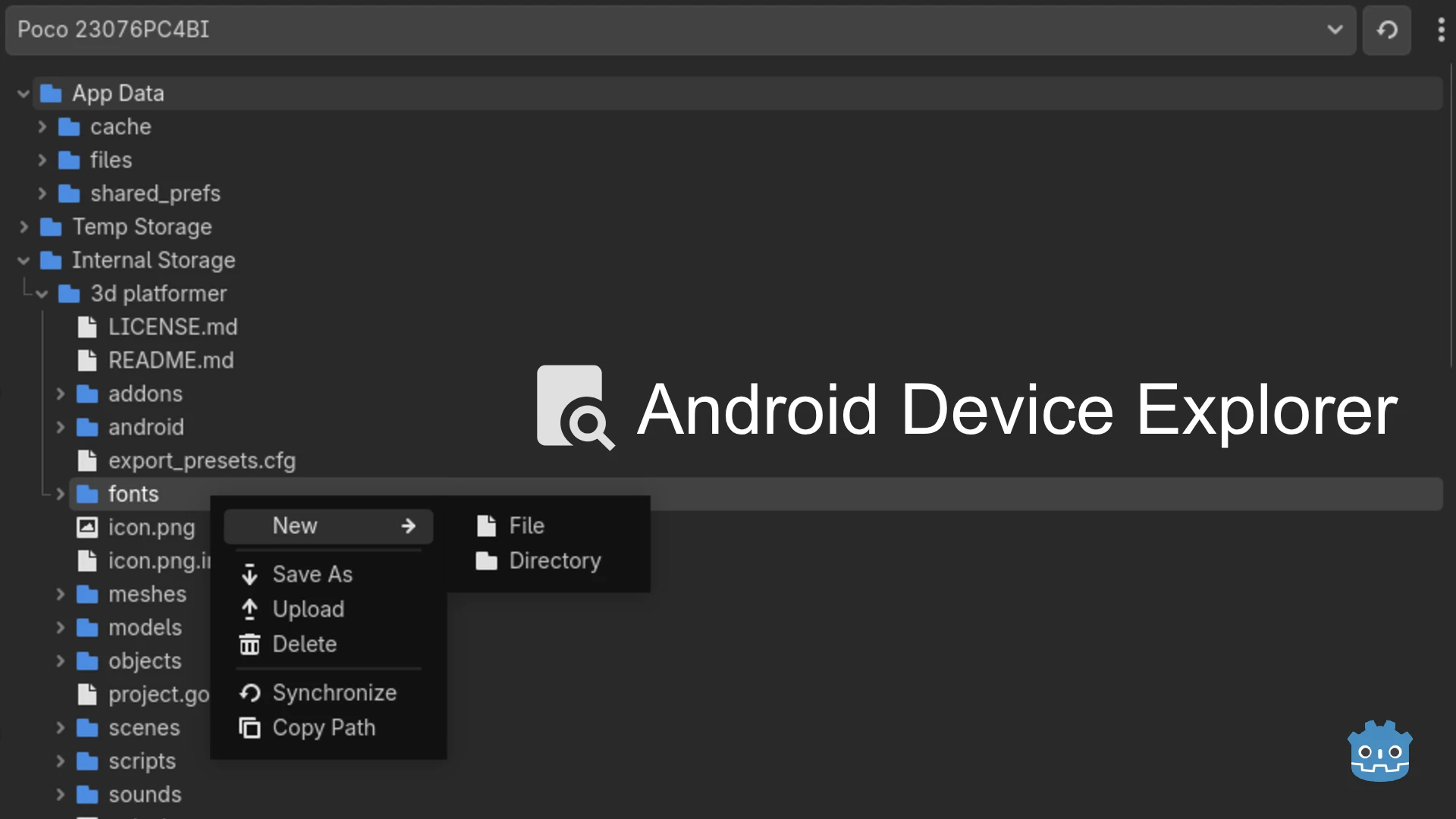

An editor plugin for Godot that lets you explore and manage the filesystem of connected ADB devices directly from within the editor.
- Inspect logs or cached data generated by your app
- Quickly push test files into your app's private data directory
- Retrieve and debug files stored by your app
- Upload, download, create, or delete files from device storage without leaving the editor
- Android device or emulator
- ADB (Android Debug Bridge) installed
- USB debugging enabled on your device
- A debug build of your app installed on the device (Only Required to access app's private data)
You can install the plugin in two ways: directly from the Godot Editor using AssetLib, or manually from the Godot Asset Store or GitHub releases.
Option 1: Directly from the Godot Editor
- Open the AssetLib tab in the Godot Editor and search for
Android Device Explorer. - Click Download.
- In the installation dialog:
- Make sure
Ignore asset rootis unchecked. - Click Install.
- Make sure
- In main menu, go to
Project > Project Settings > Plugins, and enable Android Device Explorer.
The plugin is now active in your project.
Option 2: Manual Installation
- Download the latest release from:
- Extract and copy the plugin to your project's
addonsfolder:
[Project root]/addons/android-device-explorer/
- Open your project in Godot.
- In main menu, go to
Project > Project Settings > Plugins, and enable Android Device Explorer.
The plugin is now active in your project.
-
Configure the plugin:
- ADB Path: Path to the
adbexecutable on your system - Package Name: Your app's debug package name (example,
org.godotengine.editor.v4.debug)

- ADB Path: Path to the
-
Connect your device:
- Connect your device and ensure USB debugging is enabled
- Or, start your Android emulator
- Open the Device Explorer dock in the editor
- Click the Reload button to detect connected devices
- Browse your device's filesystem
- Upload, download, create, or delete files as needed
