This directory contains API test files for the REST API Starter theme. These tests are organized into three files:
authenticate.http- Handles authentication to obtain a JWT token.get-requests.http- Contains all GET requests for retrieving WordPress data.post-requests.http- Contains all POST requests for creating or updating data (requires authentication).
To run these tests, you need the REST Client extension for VS Code:
- Open VS Code.
- Go to the Extensions Marketplace (Ctrl+Shift+X).
- Search for REST Client and install it.
The .http files make use of environment variables that should be defined in your .env file:
BASE_URL: The base URL of your WordPress installation (e.g.,http://localhost/wordpress/wp-json)WP_USERNAME: Your WordPress usernameWP_PASSWORD: Your WordPress passwordJWT_TOKEN: The JWT token used for authentication
To set up:
- Create a
.envfile in the root directory (copy from.env.example) - Add the following variables:
BASE_URL=http://localhost/your-wordpress/wp-json
WP_USERNAME=your-wordpress-username
WP_PASSWORD=your-wordpress-password
JWT_TOKEN=your-jwt-token
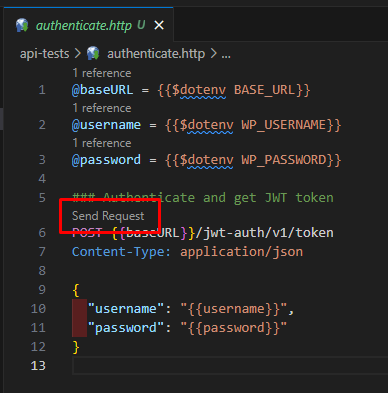
The token can be obtained by running the authentication request in authenticate.http. Copy the token from the response and update your .env file accordingly.
Note: The .env file should not be committed to version control as it contains sensitive information.
@baseURL = {{$dotenv BASE_URL}}

### Authenticate and get JWT token
POST {{baseURL}}/jwt-auth/v1/token
Content-Type: application/json

{
  "username": "{{$dotenv WP_USERNAME}}",
  "password": "{{$dotenv WP_PASSWORD}}"
}- Purpose: Use this file to generate a JWT token.
- Replace
WP_USERNAMEandWP_PASSWORDin your.envfile with valid WordPress credentials. - Copy the token from the response and update
JWT_TOKENin your.envfile.
@baseURL = {{$dotenv BASE_URL}}

### Retrieve all posts
GET {{baseURL}}/wp/v2/posts

### Search posts by keyword
GET {{baseURL}}/wp/v2/posts?search=hello

### Retrieve media items
GET {{baseURL}}/wp/v2/media- Purpose: Contains all GET requests for retrieving posts, searching for content, and fetching media.
@baseURL = {{$dotenv BASE_URL}}
@jwtToken = {{$dotenv JWT_TOKEN}}

### Create a new post
POST {{baseURL}}/wp/v2/posts
Authorization: Bearer {{jwtToken}}
Content-Type: application/json

{
  "title": "My 2nd post",
  "content": "some content",
  "status": "publish"
}- Purpose: Contains POST requests for creating or updating content.
- Ensure the
JWT_TOKENvariable in your.envfile is updated with a valid token fromauthenticate.http.
-
Set Up Environment Variables:
- Check Configure Variables
-
Run the Authentication Test:
- Open
authenticate.http. - Click Send Request for the authentication endpoint.
- Copy the
tokenvalue from the response and updateJWT_TOKENin the.envfile.
- Open
-
Run GET Requests:
- Open
get-requests.http. - Click Send Request for the desired GET endpoint.
- Open
-
Run POST Requests:
- Open
post-requests.http. - Click Send Request for the desired POST endpoint.
- Open
- JWT Token Expiry: Update the
JWT_TOKENin your.envfile if the token expires. - Environment Variables: Keep
.envout of version control to protect sensitive credentials.
Enjoy testing your REST API Starter theme with this organized setup! 🚀