Fast Tasks is a VS Code extension that provides quick access to your workspace tasks directly from the explorer view, with optimized performance and enhanced error handling.
- Open Visual Studio Code
- Press
Ctrl+Pto open the Quick Open dialog - Type
ext install batyan-soft.fast-tasksto find the extension - Click Install
Or install it from the Visual Studio Code Marketplace.
- Automatic task execution on click from the explorer view
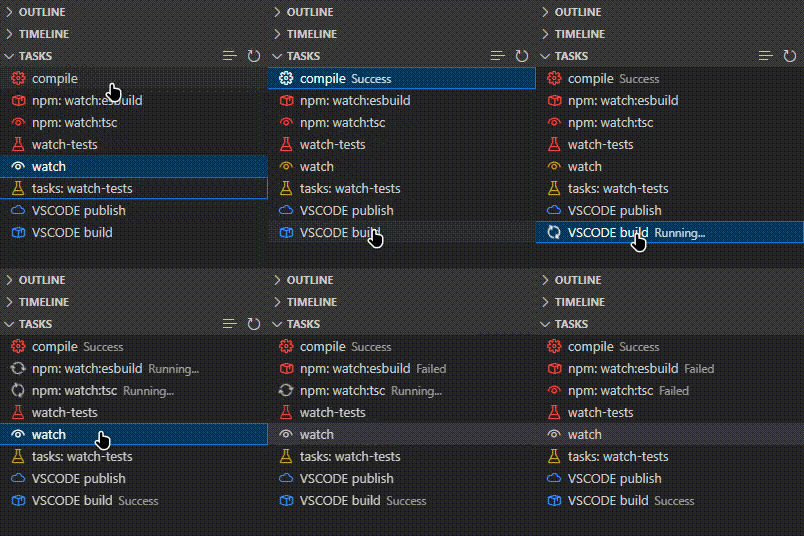
- Enhanced task view with color-coded icons
- Visual status updates for running, successful, or failed tasks (with exit codes)
- Rich task information display with error recovery
- Quick task refresh capability with caching
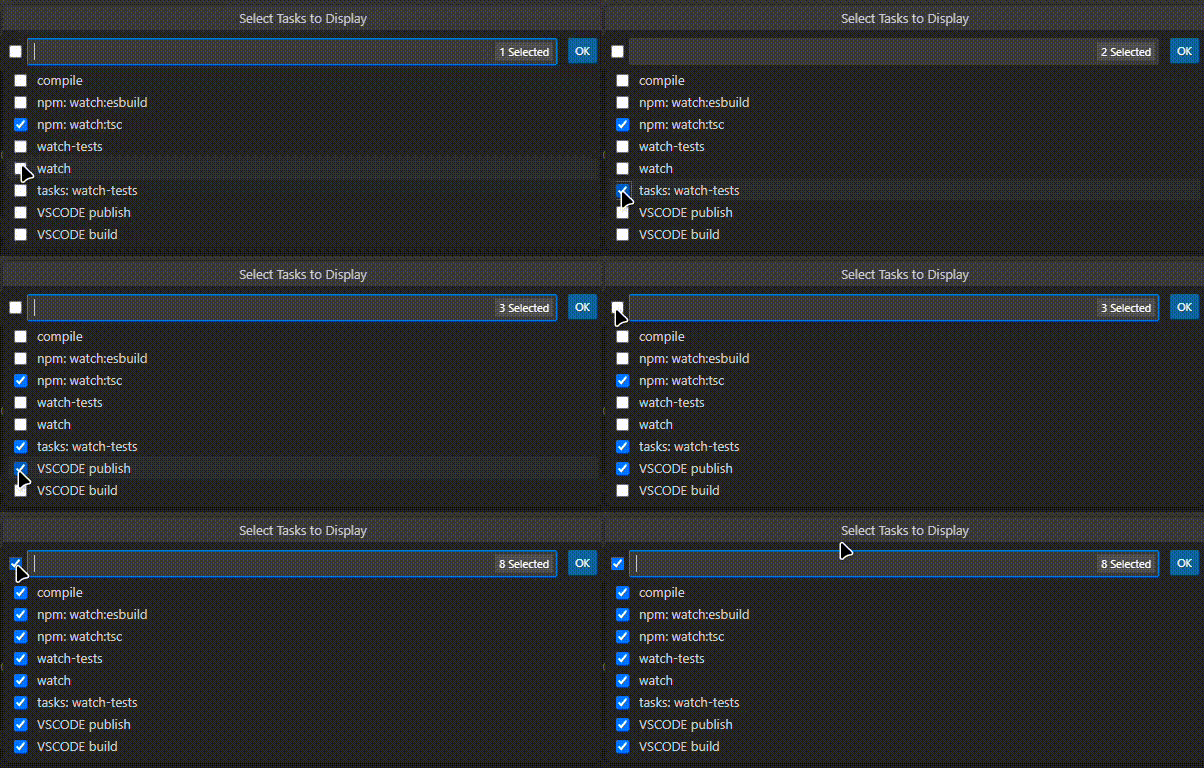
- Task filtering and selection
- Optimized performance with task caching
- Robust error handling and recovery
- Stop button for running tasks
- Edit icon button to quickly open task definition in tasks.json file
- Multi-root workspace support with optional grouping
- 🔴 NPM tasks
- 🔵 Shell tasks
- 🟣 TypeScript tasks
- 🟡 Other tasks (default)
- 📦 Build tasks
- 🧪 Test tasks
- 🚀 Launch tasks
- 🐛 Debug tasks
- 👁️ Watch tasks
- 🗑️ Clean tasks
- ☁️ Deploy tasks
▶️ Start tasks- ⏹️ Stop tasks
- ☁️ Publish tasks
- 🏃 Run tasks
- ⚙️ Other tasks (default)
You can now define custom icons for your tasks directly in your tasks.json file. These custom icons will take priority over the automatically assigned icons.
To use a custom icon, add an icon object to your task definition with an id and an optional color:
{
  "label": "build:project",
  "type": "shell",
  "command": "make build",
  "icon": {
    "id": "package", // Any valid Codicon ID
    "color": "charts.blue" // Optional: any valid ThemeColor ID
  },
  "group": "build"
}- The
idshould be a valid Codicon ID. - The
color(optional) should be a valid ThemeColor ID.
- Detailed task information on hover with error recovery
- Selected Task Highlighting
- Clean Interface
- Enhanced Status
- By default, when multiple workspace folders are open, tasks are grouped by workspace.
- You can switch to a single flat list via the setting:
Fast Tasks › Flat List. - In flat list mode (and only then), task labels include the workspace prefix:
Folder / Task. - When there is only one workspace folder, the view is always flat (no grouping).
- Task caching for faster updates
- Optimized icon and color lookups
- Efficient task status tracking
- Memory-efficient operation
- Task favorites/pinning functionality
- Task search and filtering capabilities
- Task execution history tracking
- Task dependencies visualization
- Locate the Tasks section in the Explorer view
- Click the selection button (list icon) to choose which tasks to display
- Select tasks you want to see in the view
- Click on any task to run it; the task will be highlighted while running
- View the task status as 'Running...', 'Success', or 'Failed (with exit code)'
- Use the refresh button to update the task list and clear task statuses
- Use inline action buttons that appear next to task names:
- Edit Task (pencil icon) - Click to open the tasks.json file at the exact location where the task is defined
- Stop Task (stop icon) - Available for running tasks to terminate execution
- Open Settings and search for "Fast Tasks: Flat List" to toggle the view:
- Off (default): tasks grouped by folders when multiple folders are open
- On: a single flat list of all tasks; labels show
Folder / Task
Hidden Tasks (tasks.json hide)
- By default, Fast Tasks hides tasks that have
"hide": trueintasks.json. - To show all tasks (ignore the
hideflag), enable the setting:Fast Tasks › Ignore Hide.
Ctrl+Shift+PorCmd+Shift+P(Mac) and type "Fast Tasks" to see all available commands- Use arrow keys to navigate through tasks
- Press
Enterto run a selected task - Press
Escto stop a running task
Fast Tasks supports tasks from multiple sources:
- Workspace folder tasks: Tasks defined in
.vscode/tasks.jsonortasks.jsonin workspace folders - Multi-root workspace tasks: Tasks defined in
.code-workspacefiles (both standardtasksproperty andsettings.tasksproperty) - User tasks: Global tasks defined in User
tasks.json(accessible via "Tasks: Open User Tasks" command) or in thetaskssection of usersettings.json
All task sources support custom icons, the "Edit Task" feature, and the hide flag. Custom icons and hide flags are read through the VS Code configuration model, so they work with any VS Code distribution, profiles, and remote setups (WSL/SSH).
- Visual Studio Code version 1.80.0 or higher
- A workspace with defined tasks (in tasks.json, .code-workspace files, or User tasks.json)
Contributions are welcome! Please feel free to submit a Pull Request. For major changes, please open an issue first to discuss what you would like to change.
- Fork the repository
- Create your feature branch (
git checkout -b feature/AmazingFeature) - Commit your changes (
git commit -m 'Add some AmazingFeature') - Push to the branch (
git push origin feature/AmazingFeature) - Open a Pull Request
This project is licensed under the MIT License - see the LICENSE.md file for details.
Please report any issues on the GitHub issues page.
See CHANGELOG.md for detailed release notes.