



A custom card showing a meteogram with wind barbs, powered by Met.no API or Home Assistant weather entity.
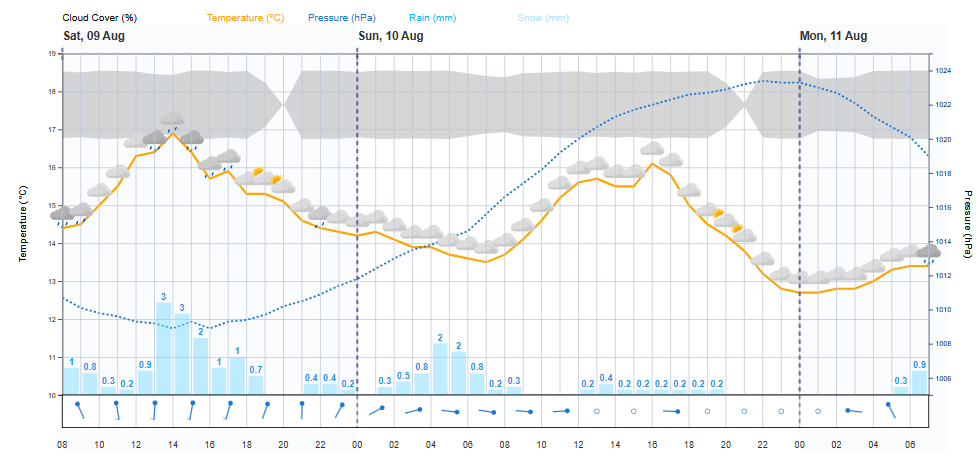
- Full weather forecast visualization
- Temperature curve with weather icons
- Precipitation display with uncertainty indicators
- Cloud coverage visualization
- Professional-style wind barbs showing wind speed, direction, and gusts
- Barometric pressure trend
- Automatically uses Home Assistant's configured location or weather entity
- Open Home Assistant and go to HACS > Frontend.
- Click the "+" button to add a new integration.
- Search for Meteogram Card.
- Click Install.
- Restart Home Assistant if prompted.
Add the card to your dashboard:
type: custom:meteogram-card
entity_id: weather.home
Optional: modify styles for the card.
type: custom:meteogram-card
styles:
  meteogram-rain-bar-color: "#2196f3"
  meteogram-rain-max-bar-color: "#90caf9"
  meteogram-temp-line-color: "#ff9800"
  meteogram-pressure-line-color: "#1976d2"
  meteogram-wind-barb-color: "#388e3c"
  meteogram-rain-label-color: "#d32f2f"
  meteogram-rain-max-label-color: "#1976d2"
  meteogram-cloud-color: red
Important Note:
Most Home Assistant weather integrations do not provide the full set of attributes that meteogram-card can display.
For example, some integrations may lack cloud cover, precipitation_max, or even wind speed and direction.
- All values must be strings.
- You can override any CSS variable used by the card.
- For dark mode, use the
modes: dark:section in your theme YAML (see below). - For a full list of variables, see doc/STYLES.md.
Caching:
Forecasts are cached in localStorage undermeteogram-card-entity-weather-cache, keyed by entity ID.
Multiple entities can be cached and retrieved independently.
meteogram-label-font-sizemeteogram-legend-font-sizemeteogram-tick-font-sizemeteogram-cloud-colormeteogram-grid-colormeteogram-pressure-line-colormeteogram-timescale-colormeteogram-rain-bar-colormeteogram-rain-max-bar-colormeteogram-temp-line-colormeteogram-wind-barb-colormeteogram-rain-label-colormeteogram-rain-max-label-color- ...and more (see doc/STYLES.md for the full list) Displays wind speed, direction, and gusts using professional-style wind barbs with pennants.
- Barometric Pressure
Shows the pressure trend over the next 48 hours with an optional right-side axis.
Configure various display options like cloud cover, pressure, weather icons, wind, and rain.
- Meteogram Length
Configurable length of the meteogram (8, 12, 24, 48 hours, or "max" for full available data). - Weather Icons Density
Choose between dense (every hour) or sparse (every 2 hours) weather icons. - Title
Optional title for the card, displayed at the top.
- Dynamic Location
Automatically uses Home Assistant's configured location, specified coordinates, or weather entity. - Responsive Design
Automatically resizes to fit the card/container, ensuring a good layout on both wide and narrow screens. - Error Handling
User-friendly error messages for network issues, API errors, and CORS problems. - Dark Mode Support
Fully supports Home Assistant's dark mode using themodes:setting in your theme YAML. All colors and styles adapt automatically. You can override any CSS variable for both light and dark mode using Home Assistant's theme system. - Visual Editor Support
Fully compatible with Home Assistant's visual editor for easy configuration. - Caching
Caches weather data per location or per entity to reduce API calls and improve performance.
Below are the main configuration options for the Meteogram Card:
| Name | Type | Default | Description |
|---|---|---|---|
| title | string | "Weather Forecast" | Optional title for the card |
| latitude | number | HA's default | Latitude for weather data |
| longitude | number | HA's default | Longitude for weather data |
| altitude | number | HA's default | Altitude (in meters) for weather data. Optional; improves accuracy for some locations. |
| entity_id | string | none | Weather entity to use as data source |
| show_cloud_cover | boolean | true | Show/hide cloud cover visualization |
| show_pressure | boolean | true | Show/hide pressure curve |
| show_precipitation | boolean | true | Show/hide precipitation visualization |
| show_weather_icons | boolean | true | Show/hide weather icons |
| show_wind | boolean | true | Show/hide wind barbs section |
| dense_weather_icons | boolean | true | Show weather icons every hour (true) or every 2 hours (false) |
| meteogram_hours | string or number | "48h" | Hours to display: preset strings ("8h", "12h", "24h", "48h", "max"), or any number (e.g., 120 for 120 hours) |
| aspect_ratio | string | "16:9" | Aspect ratio for the chart (e.g., "16:9", "4:3"). Only applies in panel/grid layout modes. |
| layout_mode | string | "sections" | Layout mode for the card: "sections", "panel", or "grid" |
| diagnostics | boolean | false | Show diagnostics/status panel (for troubleshooting) |
| display_mode | string | "full" | Display mode: "full", "core", or "focussed" (use display_mode instead of deprecated focussed) |
| focussed | boolean | false | (Deprecated) Use display_mode: "focussed" instead. |
| styles | object | {{}} | Custom CSS variables for card styling (see below) |
Breaking change: show_precipitation is now the only supported option for precipitation display. The legacy show_rain option has been removed and is no longer supported. Update your configuration to use show_precipitation only.
meteogram_hoursreplaces the deprecatedmeteogram_lengthoption. For backward compatibility,meteogram_lengthis still supported but will be ignored ifmeteogram_hoursis set.layout_modecontrols the card's layout. Possible values:sections(default): Standard Home Assistant card layout.panel: Wide, single-panel layout (good for dashboards).grid: Grid layout for advanced dashboarding.
aspect_ratioonly applies inpanelorgridlayout modes.diagnosticsenables a status panel for troubleshooting API/data issues.display_modeis the preferred way to set the card's display style. Use"focussed"for a minimal chart-only view.altitudeis optional and can be set to improve forecast accuracy for locations at significant elevation. If not set, the Home Assistant default altitude is used (if available).
show_precipitationreplaces the deprecatedshow_rainoption. For backward compatibility,show_rainis still supported but will be ignored ifshow_precipitationis set.meteogram_hoursreplaces the deprecatedmeteogram_lengthoption. For backward compatibility,meteogram_lengthis still supported but will be ignored ifmeteogram_hoursis set.layout_modecontrols the card's layout. Possible values:sections(default): Standard Home Assistant card layout.panel: Wide, single-panel layout (good for dashboards).grid: Grid layout for advanced dashboarding.
aspect_ratioonly applies inpanelorgridlayout modes.diagnosticsenables a status panel for troubleshooting API/data issues.display_modeis the preferred way to set the card's display style. Use"focussed"for a minimal chart-only view.altitudeis optional and can be set to improve forecast accuracy for locations at significant elevation. If not set, the Home Assistant default altitude is used (if available).
Experimental Option for Advanced/Legacy Views
The layout_mode option controls the overall layout of the meteogram card. The default and recommended value is sections, which is designed to integrate seamlessly with Home Assistant's modern dashboard experience.
- sections (default, recommended):
- The primary and best-supported view for meteogram-card.
- Uses Home Assistant's standard card layout, ensuring maximum compatibility and visual consistency.
- All features and options are tested and optimized for this mode.
- panel (experimental):
- Renders the chart in a wide, single-panel layout.
- Useful for legacy dashboards or custom kiosk views.
- Some features or styling may not be as robust as in
sectionsmode.
- grid (experimental):
- Places the chart in a grid layout for advanced dashboarding.
- Intended for power users and special use cases.
- May not be fully supported in all Home Assistant themes or dashboard types.
Note: The
panelandgridmodes are provided for advanced users and legacy compatibility. Most users should use the defaultsectionsmode for the best experience.
Note: The
layout_modeoption is not available in the visual (interactive) editor. To uselayout_mode, you must open the YAML editor (click "Show code editor" in the card configuration dialog) and add the option manually. This is becauselayout_modeis an advanced/experimental feature and not exposed in the standard UI.
Only applies in
panelorgridlayout modes
The aspect_ratio option allows you to control the width-to-height ratio of the chart area. This is only relevant if you are using layout_mode: panel or layout_mode: grid.
- Examples:
16:9(default),4:3,1:1,21:9,3:2, or a custom value like1.6or5:3. - Has no effect in the default
sectionslayout mode.
Recommended:
- Use the default
sectionslayout for most dashboards. Only usepanelorgrid(and thusaspect_ratio) if you have a specific advanced use case or are maintaining a legacy dashboard.
type: custom:meteogram-card
title: Weather Forecast
latitude: 51.5074
longitude: -0.1278
entity_id: weather.home
show_cloud_cover: true
show_pressure: true
show_precipitation: true
show_weather_icons: true
show_wind: true
dense_weather_icons: true
meteogram_hours: 48h
aspect_ratio: "16:9"
layout_mode: sections
diagnostics: false
display_mode: full
styles:
  meteogram-label-font-size: "16px"
meteogram-grid-color: "#1976d2"type: custom:meteogram-card
display_mode: focussedtype: custom:meteogram-card
meteogram_hours: 120 # Show 120 hours (5 days)
# Or use preset string format:
# meteogram_hours: "48h"
# meteogram_hours: "max"type: custom:meteogram-card
layout_mode: panel
aspect_ratio: "21:9"For more details and examples, see doc/STYLES.md.
type: custom:meteogram-card
diagnostics: true
The card provides built-in defaults for all CSS variables for both light and dark mode. You can override these in your Home Assistant theme or via the `styles` property. For dark mode, use the `modes: dark:` section in your theme YAML.Why are some colors named instead of hex codes? To avoid HACS/GitHub auto-linking hex codes like
#333and#444as issue references, these have been replaced with named CSS colors (e.g.,darkgray,dimgray,gray,black) in documentation examples. You can safely copy-paste these values—they will work in Home Assistant and CSS. Other hex codes remain unchanged.
Example: Customize chart colors
type: custom:meteogram-card
styles:
  meteogram-cloud-color: "#ffb300"
  meteogram-grid-color: "#1976d2"
Example: Change font size for labels, legends, and axis ticks
type: custom:meteogram-card
styles:
  meteogram-label-font-size: "18px"      # Axis labels, date/hour/rain labels
  meteogram-legend-font-size: "16px"     # Legend text
  meteogram-tick-font-size: "15px"       # Y axis tick text
Example: Customize rain bar, temperature line, pressure line, wind barb colors, and rain label text
type: custom:meteogram-card
styles:
  meteogram-rain-bar-color: "#2196f3"
  meteogram-rain-max-bar-color: "#90caf9"
  meteogram-temp-line-color: "#ff9800"
  meteogram-pressure-line-color: "#1976d2"
  meteogram-wind-barb-color: "#388e3c"
  meteogram-rain-label-color: "#d32f2f"
  meteogram-rain-max-label-color: "#1976d2"
  meteogram-cloud-color: red
Usage notes:
- All values must be strings.
- You can override any CSS variable used by the card.
- For dark mode, you can customize variables directly in your card config using a
modes: dark:section insidestyles:. This works just like in Home Assistant themes. - For a full list of variables, see doc/STYLES.md.
Example: Customizing dark mode in your card config
type: custom:meteogram-card
styles:
  meteogram-grid-color: "#1976d2"
  meteogram-cloud-color: "#ffb300"
  modes:
    dark:
      meteogram-grid-color: "#444444"
      meteogram-cloud-color: "darkgray"
This will apply the dark mode colors only when Home Assistant is in dark mode, for this card instance.
You can override the following CSS variables via the styles option or your theme YAML (without the -- prefix):
meteogram-label-font-sizemeteogram-legend-font-sizemeteogram-tick-font-sizemeteogram-cloud-colormeteogram-grid-colormeteogram-pressure-line-colormeteogram-timescale-colormeteogram-rain-bar-colormeteogram-rain-max-bar-colormeteogram-temp-line-colormeteogram-wind-barb-colormeteogram-rain-label-colormeteogram-rain-max-label-color- ...and more (see doc/STYLES.md for the full list)
For more details and examples, see doc/STYLES.md.
This card fetches weather data from the Met.no API or from a Home Assistant weather entity.
If no coordinates or entity are specified, it will use your Home Assistant's configured location.
The card uses the "complete" API endpoint to retrieve precipitation probability data, which allows visualization of precipitation uncertainty.
For developers, the Meteogram Card is built with TypeScript and uses modern web technologies.
- Weather data provided by MET Norway Weather API
- Weather icons from Met.no Weather Icons
The following are the default configuration properties for the Meteogram Card (as of the latest version):
| Property | Default Value |
|---|---|
| title | "" |
| latitude | undefined |
| longitude | undefined |
| showCloudCover | true |
| showPressure | true |
| showRain | true |
| showWeatherIcons | true |
| showWind | true |
| denseWeatherIcons | true |
| meteogramHours | "48h" |
| styles | {{}} |
| diagnostics | DIAGNOSTICS_DEFAULT |
| entityId | undefined |
| focussed | false |
Note: DIAGNOSTICS_DEFAULT is defined in the code and typically defaults to false for production builds.
The following are the default CSS variables for the card. You can override these in your Home Assistant theme or via the styles property:
:host {
  --meteogram-grid-color: #b8c4d9;
  --meteogram-temp-line-color: orange;
  --meteogram-pressure-line-color: #90caf9;
  --meteogram-rain-bar-color: deepskyblue;
  --meteogram-rain-max-bar-color: #7fdbff;
  --meteogram-rain-label-color: #0058a3;
  --meteogram-rain-max-label-color: #2693e6;
  --meteogram-cloud-color: #b0bec5;
  --meteogram-wind-barb-color: #1976d2;
  --meteogram-label-font-size: 13px;
  --meteogram-legend-font-size: 14px;
  --meteogram-tick-font-size: 13px;
  --meteogram-axis-label-color: #000;
  --meteogram-timescale-color: #ffb300;
}
Note: The card no longer uses -dark variable names. Instead, all variables are automatically applied for the correct mode using Home Assistant's theme system and the :host([dark]) selector.
The meteogram displays wind speed, direction, and gusts using professional-style wind barbs, a standard meteorological symbol. Each wind barb is plotted at the corresponding forecast hour and visually encodes the wind speed, direction, and gust information:
- Direction:
- The shaft of the wind barb points in the direction from which the wind is blowing.
- North is up on the chart, so a barb pointing straight up means wind is coming from the north (blowing south).
- For example, a barb pointing to the right (east) means wind is coming from the east (blowing west).
- Sustained Wind Speed (Right Side):
- Wind speed is indicated by the number and type of barbs (feathers) and pennants on the right side of the shaft:
- Short feather: 5 knots
- Long feather: 10 knots
- Pennant (triangle): 50 knots
- The total wind speed is the sum of the values of all feathers and pennants on the barb.
- For example, a barb with one pennant, one long feather, and one short feather represents 65 knots (50 + 10 + 5).
- If the wind is very light (less than 2 knots), a small circle is drawn instead of a barb ("calm").
- Wind speed is indicated by the number and type of barbs (feathers) and pennants on the right side of the shaft:
- Wind Gusts (Left Side):
- Wind gusts are displayed on the left side of the wind barb shaft in orange color.
- Gust feathers and pennants follow the same convention as sustained wind (5kt, 10kt, 50kt).
- Gust visualization shows the absolute gust speed, not the difference from sustained wind.
- Only displayed when gust data is available from the weather source.
- Placement:
- Wind barbs are shown in a dedicated band below the main chart area, aligned with the forecast hour.
- The length of the shaft and the size of the feathers are scaled for readability.
Reading the wind barbs:
- The orientation of the shaft shows the wind's origin direction (where it's coming from).
- Right side feathers/pennants show sustained wind speed in knots (blue/black color).
- Left side feathers/pennants show wind gust speed in knots (orange color).
- Calm winds (less than 2 knots) are shown as a small circle.
Examples:
- A wind barb pointing up with one long and one short feather on the right: wind from the north at 15 knots sustained.
- A wind barb pointing left with two long feathers on the right and one pennant on the left: wind from the west at 20 knots sustained, 50 knots gusts.
- A wind barb with one pennant and one long feather on the right, plus one pennant and one short feather on the left (orange): 60 knots sustained, 55 knots gusts.
This visualization allows you to quickly assess both the strength and direction of the wind at each forecast hour, just as in professional meteorological charts.