#Taskboy - A Simple and Local Secure Task Manager
Taskboy is a secure and straightforward command-line task manager that empowers you to efficiently organize and manage your tasks. With its focus on simplicity and security, Taskboy provides an easy-to-use interface while ensuring that your task data remains protected.

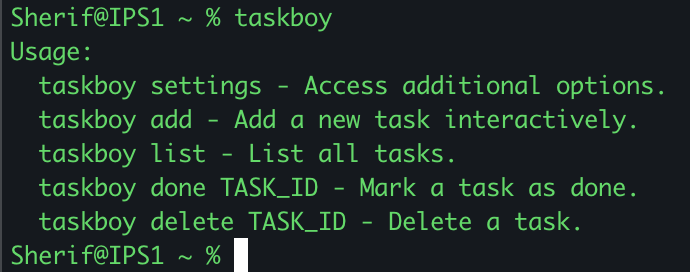
#Usage & #Basic Commands
Add a Task:
Adding a task is a breeze. Simply run the following command to add a new task interactively:
taskboy add Taskboy will prompt you to provide task details such as description, due date, priority, and category.
List Tasks:
To view your current tasks, execute:
taskboy list Taskboy will display a concise table showing your tasks, including their IDs, descriptions, due dates, priorities, categories, and statuses.
Mark a Task as Done:
To mark a task as completed, specify its ID using the -t option. For example, to mark task ID 1 as done:
taskboy done 1
Delete a Task:
To remove a task, provide its ID using the -t option. For instance, to delete task ID 1:
taskboy delete 1
#Security Features
Taskboy places a strong emphasis on the security of your task data.
#Password Protection
Taskboy leverages password hashing to securely lock and unlock your task list. Your password is never stored in plain text, ensuring your data remains confidential. We advise that you do not use the same password as your login credentials with taskboy. While taskboy runs locally and does not transmit any data over any networks, it is not wise to create points of weakness within your overall security posture.
#Installation
Getting started with Taskboy is quick and straightforward. Follow these steps:
Download the Script:
First, download the taskboy.sh script to ~/taskboy.
Manual Download: Go to the Taskboy project repository on GitHub or the source from which you obtained the script. Look for a "Download" button or a link labeled "taskboy.sh." Click on it to download the script to your computer. Ensure that you know the directory where it's saved.
Clone the Repository: If Taskboy is hosted on a version control platform like GitHub, you can also clone the entire repository to your computer using a command like git clone <repository_url>. This method is recommended if you plan to keep Taskboy updated regularly.
Choose a Directory:
Next, decide where you'd like to store the taskboy.sh script on your computer. For this example, let's assume you want to place it in a directory named taskboy in your home directory (~/).
Move or Copy the Script:
Depending on your preference, you can either move or copy the downloaded taskboy.sh script to the desired directory (~/taskboy). Here are two common methods to achieve this:
Move (Recommended for Cloned Repositories):
If you cloned the Taskboy repository, use the mv (move) command to move the script to the ~/taskboy directory:
mv taskboy.sh ~/taskboy/ This command moves the script to the specified directory.
Copy (Recommended for Manual Downloads):
If you manually downloaded the script, use the cp (copy) command to make a copy of the script in the ~/taskboy directory:
cp /path/to/downloaded/taskboy.sh ~/taskboy/ Replace /path/to/downloaded/taskboy.sh with the actual path to the downloaded script.
Confirm Placement:
You can verify that the script is in the correct location by navigating to the ~/taskboy directory and checking for the presence of the taskboy.sh script.
Now that you've successfully downloaded and placed the Taskboy script in the designated directory, you're ready to proceed with the installation and start managing your tasks.
Make It Executable:
In your terminal, navigate to the directory where you downloaded taskboy.sh, and make the script executable:
chmod +x taskboy.sh Install Taskboy:
Install Taskboy by creating an alias for the script in your shell configuration file. Choose the appropriate alias command based on your shell:
Bash:
echo "alias taskboy='$(realpath taskboy.sh)'" >> ~/.bashrc
Zsh:
echo "alias taskboy='$(realpath taskboy.sh)'" >> ~/.zshrc
Fish:
echo "alias taskboy='$(realpath taskboy.sh)'" >> ~/.config/fish/config.fish
Other Shells:
If you're using a different shell, manually add the alias to your shell's configuration file. Replace $(realpath taskboy.sh) with the full path to the taskboy.sh script.
Restart Your Terminal:
Restart your terminal or run source ~/.bashrc (or equivalent) to apply the changes.
#Uninstallation
If you ever decide to remove Taskboy from your system, you can do so easily:
Open Your Terminal:
Navigate to the Script Directory:
Go to the directory where you placed the taskboy.sh script.
Run the Uninstallation Command:
Use the appropriate uninstallation command for your shell:
Bash:
sed -i '/alias taskboy=/d' ~/.bashrc
Zsh:
sed -i '/alias taskboy=/d' ~/.zshrc
Fish:
sed -i '/alias taskboy=/d' ~/.config/fish/config.fish
Other Shells:
If you're using a different shell, manually remove the alias from your shell's configuration file.
Restart Your Terminal:
Restart your terminal or run source ~/.bashrc (or equivalent) to apply the changes.
#Contributing
Contributions are highly welcomed! If you have any suggestions, improvements, or bug fixes, please feel free to submit a pull request. If you're planning major changes or have feature requests, consider opening an issue first to discuss your ideas.
#License
Taskboy is distributed under the MIT License.
Discover the simplicity and security of Taskboy, and start managing your tasks effortlessly today!
-Sherif FileBay