A complete Python tutorial showing how to digitally sign PDF files using .pfx or .p12 certificates with the PDFSignify API.
This guide covers:
- Sign PDFs in Python
- Upload
.pfx/.p12certificates - Use the PDFSignify REST API
- Customize PDF signatures
- Add metadata to signed PDFs
- Save signed PDFs automatically
- Introduction
- 1. Create the Python Project
- 2. Create a Virtual Environment
- 3. Install Dependencies
- 4. Create a PDFSignify Account
- 5. Create API Credentials
- 6. Prepare the PDF and Certificate
- 7. Sign PDFs in Python
- 8. Customize the Signature
- 9. Add PDF Metadata
- 10. Complete Example
This tutorial explains how to digitally sign PDF documents using Python and PDFSignify.
Digital signatures help verify:
- document authenticity
- document integrity
- signer identity
You need:
- a PDF file
- a
.pfxor.p12certificate - the certificate password
- PDFSignify API credentials
mkdir python-pdf-signing
cd python-pdf-signingCreate the virtual environment:
python3 -m venv venvActivate it on Linux/macOS:
source venv/bin/activateActivate it on Windows:
venv\Scripts\activateInstall requests:
pip install requestsOptional:
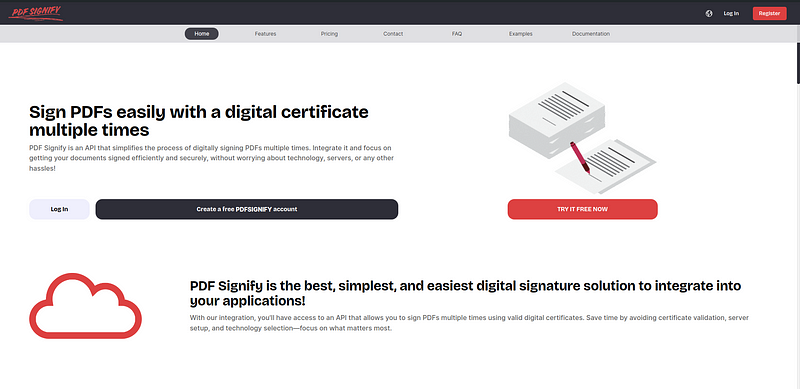
pip freeze > requirements.txtGo to:
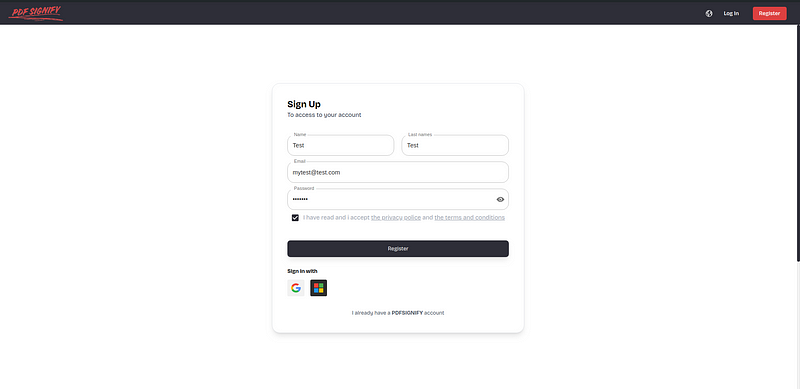
Create an account or log in.
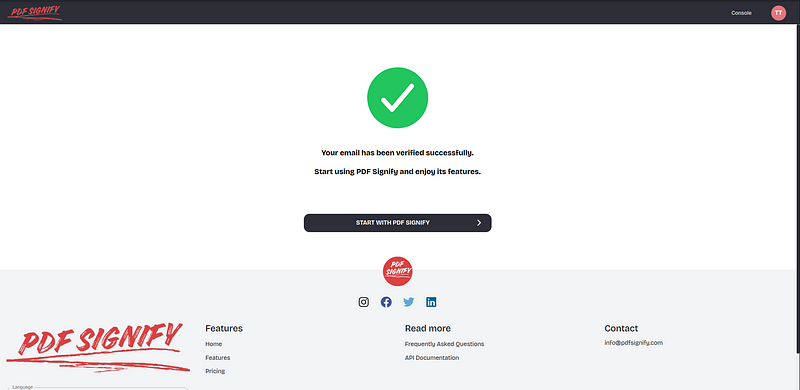
Verify your email:
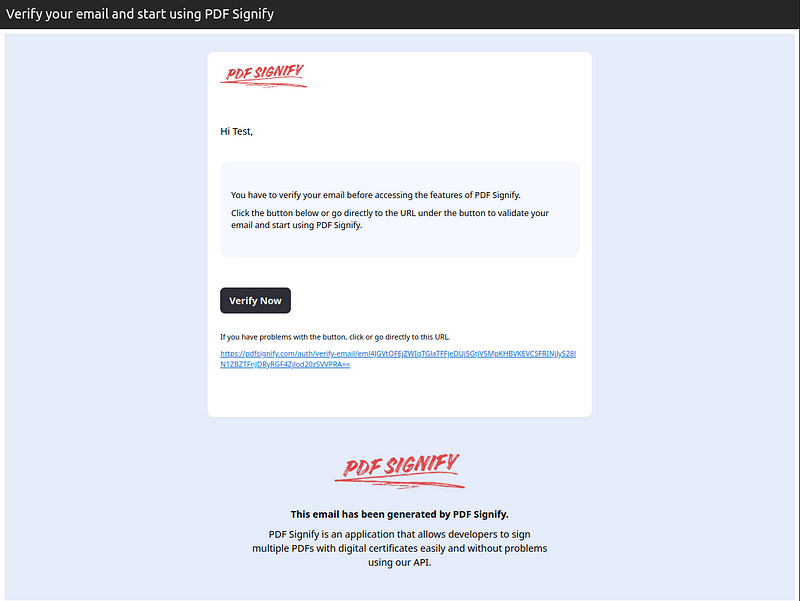
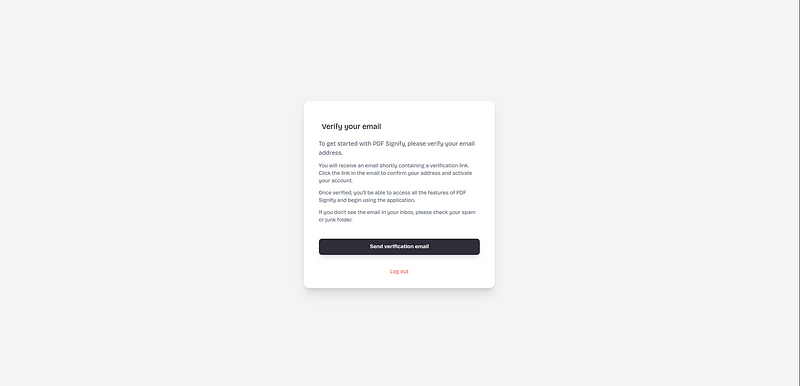
If needed, resend the verification email:
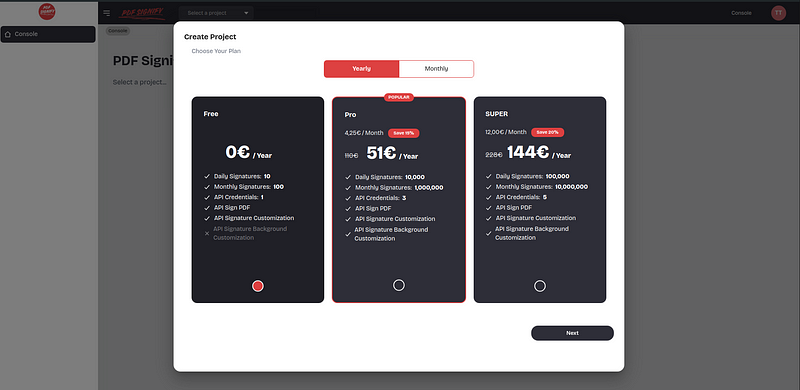
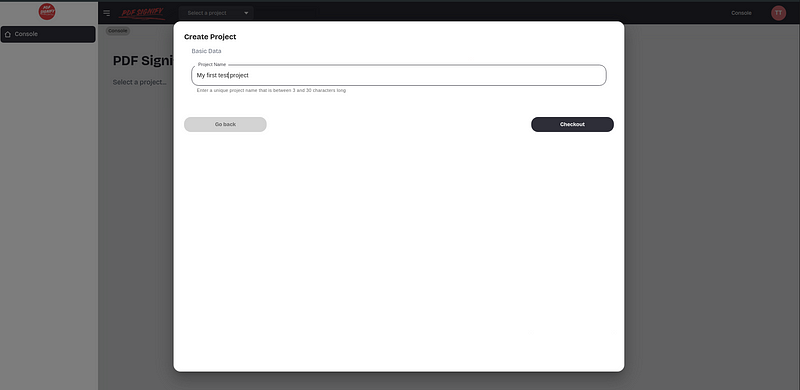
Create a project:
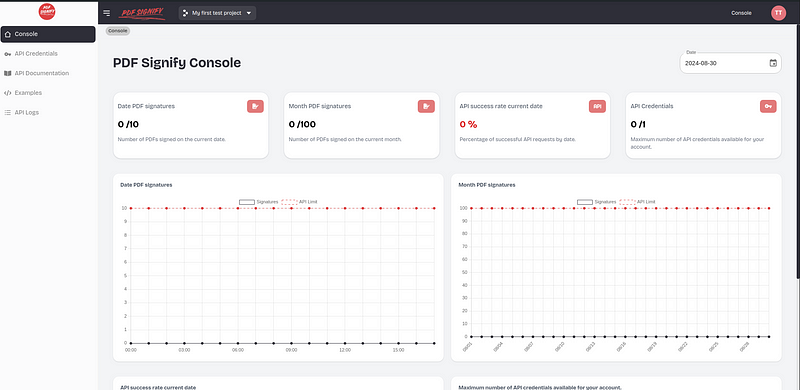
Open the API credentials section.
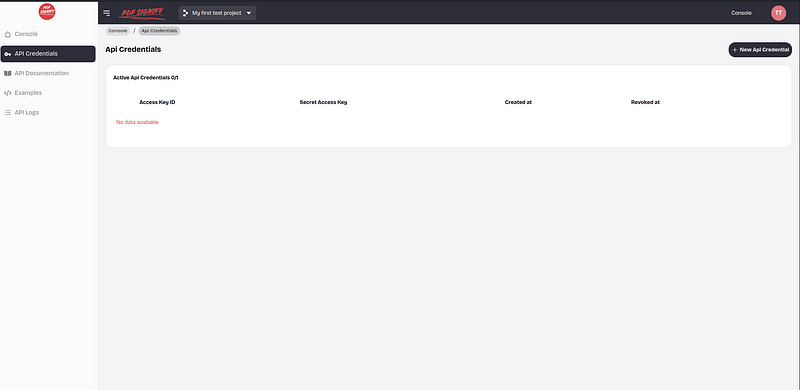
Create credentials:
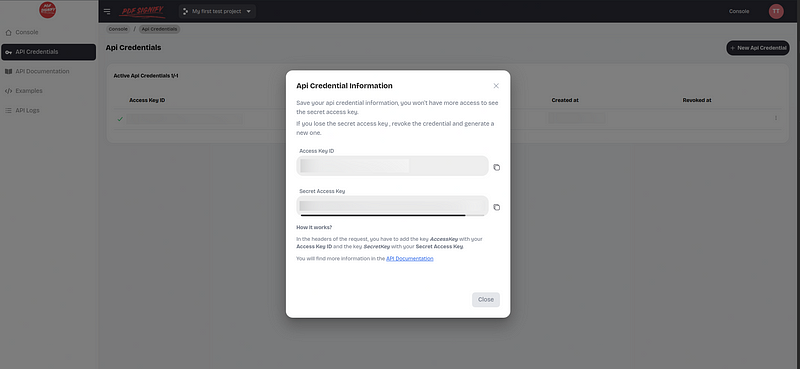
Save:
- AccessKey
- SecretKey
Project structure:
python-pdf-signing/
├── sign_pdf.py
├── filepdf.pdf
├── certificate.pfx
└── venv/
Supported certificate formats:
.pfx.p12
Create sign_pdf.py:
import requests

API_URL = "https://api.pdfsignify.com/api/v1/sign-pdf"

ACCESS_KEY = "MY_ACCESS_KEY"
SECRET_KEY = "MY_SECRET_KEY"

CERTIFICATE_PATH = "certificate.pfx"
PDF_PATH = "filepdf.pdf"

CERTIFICATE_PASSWORD = "YOUR_CERTIFICATE_PASSWORD"

headers = {
    "AccessKey": ACCESS_KEY,
    "SecretKey": SECRET_KEY,
}

data = {
    "certificatePassword": CERTIFICATE_PASSWORD,
}

with open(CERTIFICATE_PATH, "rb") as certificate_file, open(PDF_PATH, "rb") as pdf_file:

    files = {
        "certificate": (
            "certificate.pfx",
            certificate_file,
            "application/x-pkcs12"
        ),

        "pdf": (
            "filepdf.pdf",
            pdf_file,
            "application/pdf"
        ),
    }

    response = requests.post(
        API_URL,
        headers=headers,
        files=files,
        data=data
    )

if response.status_code != 200:
    print("Error signing PDF")
    print(response.text)
    exit(1)

with open("signed_filepdf.pdf", "wb") as signed_pdf:
    signed_pdf.write(response.content)

print("PDF signed successfully")
Run the script:
python sign_pdf.pyExample signature configuration:
data = {
    "certificatePassword": CERTIFICATE_PASSWORD,

    "signaturePageAppearance": "-1",
    "timezone": "UTC",

    "signatureMessage": "Digitally signed by the user",

    "signatureDateFormat": "Y-m-d H:i:s",

    "signatureHeight": "100",
    "signatureWidth": "150",

    "signatureYPosition": "100",
    "signatureXPosition": "180",
}data = {
"certificatePassword": CERTIFICATE_PASSWORD,
"pdfMetadataAuthor": "AUTHOR",
"pdfMetadataKeywords": "keywords,keyword2",
"pdfMetadataTitle": "MY DOCUMENT",
"pdfMetadataSubject": "EXAMPLE DOCUMENT",
"pdfMetadataCreator": "PDFSIGNIFY",
"pdfMetadataProducer": "PDFSIGNIFY",
}import requests
from datetime import datetime
API_URL = "https://api.pdfsignify.com/api/v1/sign-pdf"
ACCESS_KEY = "MY_ACCESS_KEY"
SECRET_KEY = "MY_SECRET_KEY"
CERTIFICATE_PATH = "certificate.pfx"
PDF_PATH = "filepdf.pdf"
CERTIFICATE_PASSWORD = "YOUR_CERTIFICATE_PASSWORD"
OUTPUT_PATH = "signed_filepdf.pdf"
headers = {
"AccessKey": ACCESS_KEY,
"SecretKey": SECRET_KEY,
}
current_datetime = datetime.now().strftime("%Y-%m-%d %H:%M:%S")
data = {
"certificatePassword": CERTIFICATE_PASSWORD,
"signaturePageAppearance": "-1",
"timezone": "UTC",
"signatureMessage": "Digitally signed by the user",
"signatureDateFormat": "Y-m-d H:i:s",
"signatureHeight": "100",
"signatureWidth": "150",
"signatureYPosition": "100",
"signatureXPosition": "180",
"pdfMetadataAuthor": "AUTHOR",
"pdfMetadataKeywords": "keywords,keyword2",
"pdfMetadataTitle": "MY DOCUMENT",
"pdfMetadataSubject": "EXAMPLE DOCUMENT",
"pdfMetadataCreator": "PDFSIGNIFY",
"pdfMetadataProducer": "PDFSIGNIFY",
"pdfMetadataCreationDate": current_datetime,
"pdfMetadataModificationDate": current_datetime,
}
with open(CERTIFICATE_PATH, "rb") as certificate_file, open(PDF_PATH, "rb") as pdf_file:
files = {
"certificate": (
"certificate.pfx",
certificate_file,
"application/x-pkcs12"
),
"pdf": (
"filepdf.pdf",
pdf_file,
"application/pdf"
),
}
response = requests.post(
API_URL,
headers=headers,
files=files,
data=data
)
if response.status_code != 200:
print("Error signing PDF")
print(response.text)
exit(1)
with open(OUTPUT_PATH, "wb") as signed_pdf:
signed_pdf.write(response.content)
print(f"PDF signed successfully: {OUTPUT_PATH}")MIT