You signed in with another tab or window. Reload to refresh your session.You signed out in another tab or window. Reload to refresh your session.You switched accounts on another tab or window. Reload to refresh your session.Dismiss alert
A template for an Android app called 'List My Apps'
Language:
XML (with custom variables)
Description:
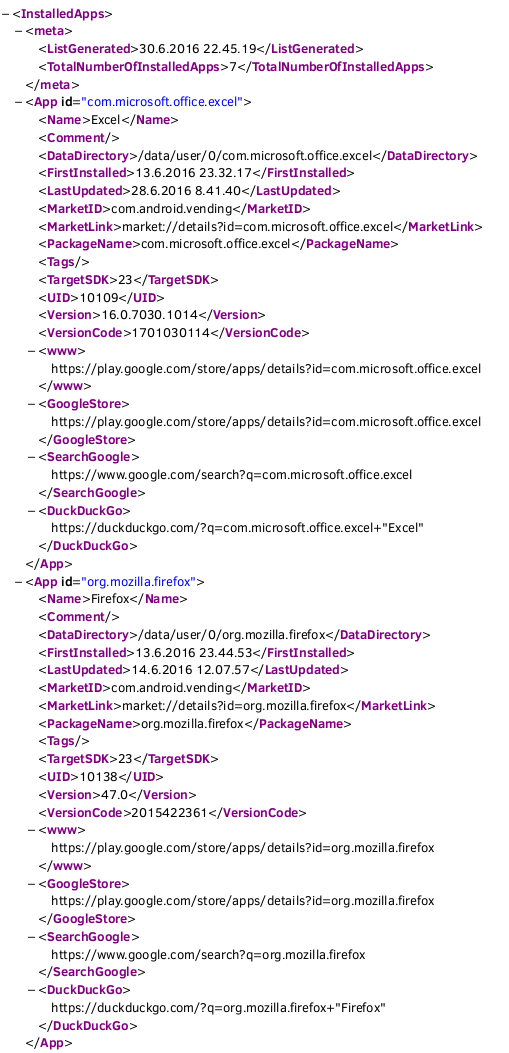
This template (when run in an Android app called 'List My Apps') creates a .xml-file of the apps installed on an Android device. The resulted XML-file can be imported into Microsoft Excel (as described in the Tutorial Step 12 below). The Import to Excel -procedure automagically arranges the data into a column style format based on the headers, makes the columns sortable with a click and applies some styling to the data.
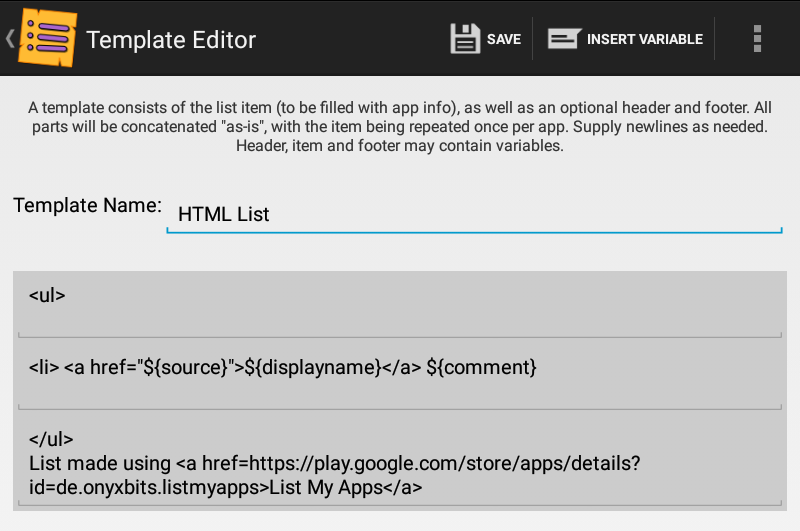
List My Apps custom templates consist of three fields ("List header", "Item format" and "List footer"). The template code in this project is divided into three parts, which correspond the fields found in List My Apps' Template Editor as described below:
Contains all the above mentioned three parts in one file.
Please include one empty row after "File Header" and "Body" in the List My Apps template (so that the script will write each data row on its own row).
After the app data has been pasted from 'List My Apps' to a XML-editor, please search for the character & and replace every occurence with the word and (since XML-files don't work that well with extra ampersands or with extra <
characters).
The resulted XML-file needs to be further processed in order to create a human readable file (Tutorial Step 12).
Tutorial
📖
To open this code with an Android device, for instance:
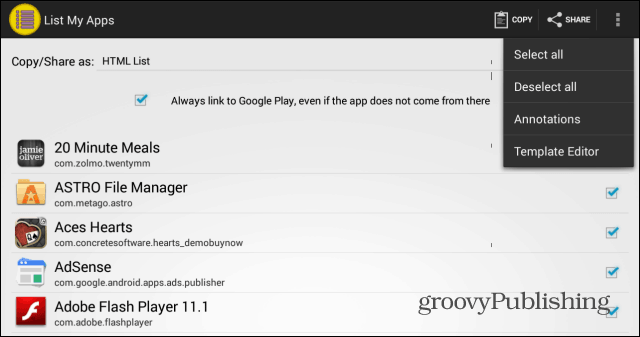
Create a new template in 'List My Apps' -app's Template Editor by clicking Options (three dots) → Template Editor → Add. [Screenshot]
Type in a name for the template.
Paste all the appropriate template data (the three sections as specified below) to 'List My Apps'. Please include one empty row after "File Header" and "Body" (so that the script will write each data row on its own row) and save the template.
Contains all the above mentioned three parts in one file.
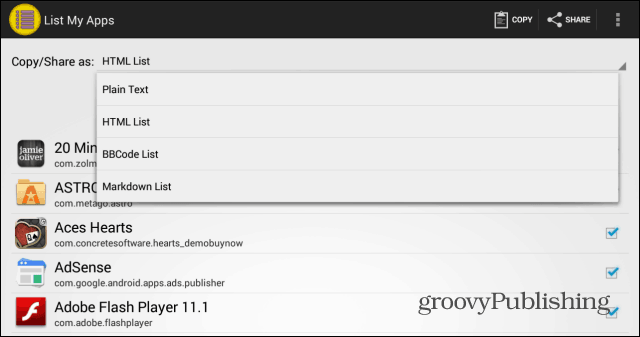
After saving the template go back to the 'List My Apps' -app's home screen and select the name that was created in Step 2 from the 'Copy/Share as:' -dropdown menu. Please also select the apps that you'd like to be included in the list. [Screenshot]
'Run' the 'List My Apps' -app with the new template by copying the app data to Clipboard [Copy] (since direct sharing may not work, if a lot of applications has been installed).
There seems to be some kind of a limit, how much data the Android Clipboard can contain. With verbose templates ~200 apps might be the upper limit, but with a simple template, the Android Clipboard clearly is capable of containing considerably more app data.
Paste the app data (source code generated by 'List My Apps' in Step 5) from Clipboard to the XML-editor.
If nothing happens (no data is pasted to a XML-editor after a few seconds), try selecting fewer apps in 'List My Apps' and go back to Step 5.
Depending on the device some lagging may occur when trying to paste, say ~10000 lines of code.
If "old data" gets pasted to a XML-editor (i.e. "the data that was in the Clipboard before List My Apps' 'Copy to Clipboard' -button was clicked"), try selecting fewer apps in 'List My Apps' and go back to Step 5.
After pasting the app data to the XML-editor, please search for the character & and replace every occurence with the word and (since XML-files don't work that well with extra ampersands or with extra < characters).
Save the file as a .xml-file, for example as 'Installed_Apps.xml', for example in 'Home/Documents' folder (a filename without any spaces is recommended).
Firefox for Android renders also .xml-files, but since the plain XML-format is quite unlegible without any styling applied, one might want to open it in Excel instead. So...
Copy the .xml-file to, for instance, C:\Temp\ -directory in Windows.
Microsoft Excel
On the Data tab of the Ribbon bar, in the Get External Data group, click From Another Source and choose XML. Then, in the Import Data dialog box, double-click the Installed_Apps.xml file.
Click OK on the error message.
Select where the imported cells are placed and click OK.
Please include one empty row after "File Header" and "Body" in the List My Apps template (so that the script will write each data row on its own row).
After the app data has been pasted from 'List My Apps' to a XML-editor, please search for the character & and replace every occurence with the word and (since XML-files don't work that well with extra ampersands or with extra < characters).
About
A Custom Template for an Android app called 'List My Apps'