
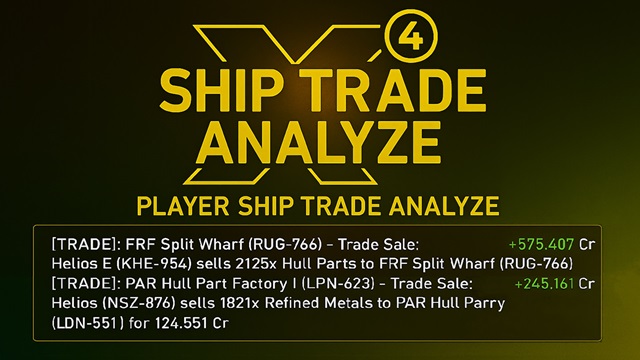
A simple, fast desktop tool for X4: Foundations players to understand their ship's trading performance. Point it at your game folder and a save file and get clear insights into:
- Which wares make you the most profit
- How each of your ships has been trading over time
- Totals for price, quantity, and estimated profit per transaction
Important notice: Please be aware - trade logs are collected by game for AI pilots only.
The app runs locally and reads only your X4 files. Nothing is uploaded. Nothing is MODDED!
- Two analysis modes:
- By Transactions: Each buy/sell action is analyzed separately. This is faster and shows more data, but profit is estimated based on average prices.
- By Trades: Profit is calculated based on actual trades (buy+sell). This method is more accurate for profit calculation, but may show fewer entries if some ships haven't completed trades yet.
- Ships transactions/trades: A detailed table of every transaction/trade in your save
- Columns for Transactions: Time, Sector, Station, Operation (Buy/Sell), Product, Price, Quantity, Total, Estimated Profit
- Columns for Trades: Time, Product, Bought, Sold, Profit, Spent Time.
- Columns for related Transactions: Time, Operation, Volume, Price, Sector, Station
- Transactions filters for ware type: Container, Solid, Liquid, Gas
- Trades filter: With Internal Trades (i.e. trades between your stations can be excluded)
- Ships graphs: Compare ships visually
- Interactive chart per ship; double-click a ship in the list to toggle it on/off
- Same Container/Solid/Liquid/Gas filters can be applied
- Cargo capacity utilization distribution across all transactions tab
- Single-series histogram with per-ship, with capacity usage colors and tooltips
- Ships by Wares: See which ships trade which wares
- Stacked column chart with ships on X-axis and wares colored
- Sorted by profit in descending order
- Same Container/Solid/Liquid/Gas filters can be applied
- Wares by Ships: See which wares are traded by which ships
- Same as above, but with wares on X-axis and ships colored
- Sorted by profit in descending order
- Same Container/Solid/Liquid/Gas filters can be applied
- Configuration (first-run setup and updates from save files)
- Set Game Folder (your X4.exe location)
- Choose a save file (.xml.gz)
- Optional theme: System, Light, or Dark
- Update checker: view installed version, run a manual check, or enable automatic checks on startup
- Quick stats to confirm data loaded (wares, factions, ships, stations, trades, language)
- Built-in Readme: A “Readme” tab mirrors this guide inside the app
-
Get the app
- Recommended: Download the latest Windows or Linux build from the Nexus Mods:
-
Install and run
- Windows:
- Unzip the downloaded
X4PlayerShipTradeAnalyzer-win_?.?.?.zipand runX4PlayerShipTradeAnalyzer.exeinside the folderX4PlayerShipTradeAnalyzer.
- Unzip the downloaded
- Linux:
- Unzip
X4PlayerShipTradeAnalyzer-linux_?.?.?.zipand then extractX4PlayerShipTradeAnalyzerfolder fromX4PlayerShipTradeAnalyzer-linux_?.?.?.tar.gz. - Run executable
X4PlayerShipTradeAnalyzer.
- Unzip
- Windows:
-
Game Folder
- Click Set next to “Game Folder” and select your X4.exe. Typical paths for Windows:
- Steam:
C:\Program Files (x86)\Steam\steamapps\common\X4 Foundations\X4.exe - GOG/Epic: wherever you installed X4
- Steam:
- Click Set next to “Game Folder” and select your X4.exe. Typical paths for Windows:
-
Save file
- Click Set next to “Game Save Path” and choose a save
.xml.gz. Typical path for Windows:- Steam:
%USERPROFILE%\Documents\Egosoft\X4\<player-id>\save\quicksave.xml.gz - GOG/Epic:
%USERPROFILE%\Documents\Egosoft\X4\save\quicksave.xml.gz
- Steam:
- Click Set next to “Game Save Path” and choose a save
-
Load data
- Click “Reload Data” for the Game Folder to import base game data (wares, factions, etc.).
- Click “Reload Data” for the Save Path to import your transactions.
- When data is present, the other tabs become enabled.
-
Optional settings
- Load Only Game Language: speeds up loading by using your game language only.
- Theme: System, Light, or Dark.
-
Auto-reload
- Enable “Auto-reload game saves" radio button:
- with "No": the app will not monitor changes to your save file. You will need to manually reload data when you want to see new transactions.
- with "Selected Save file": the app will monitor changes to your selected save file and automatically reload data when it changes on disk. As selected save file will be used latest loaded one.
- with "Any Save file": the app will monitor changes to any save file in your X4 saves folder and automatically reload data when any of them changes on disk. The folder is determined based on latest loaded save file.
-
Update checker
- Check for updates on startup: automatically runs the release check when the analyzer opens.
- Use the “Check for updates” button at the bottom to run the check immediately.
-
By Transactions
-
Ships transactions tab
- Browse trades with totals and estimated profit.
- Filter by:
- Parent Station: Any/None or Exact one.
- Ship Class: All, XL, L, M, S.
- Cargo type: Container/Solid/Liquid/Gas
- Can be sorted by Ship Name/Profit in a Ships List.
-
Ships graphs tab
- Visualize activity and compare ships.
- Double-click a ship in the list to show/hide it on the chart.
- Toggled Ship in a List will be have colored similar to the chart.
- Filter by:
- Parent Station: Any/None or Exact one.
- Ship Class: All, XL, L, M, S.
- Cargo type: Container/Solid/Liquid/Gas
- Can be sorted by Name/Profit in a Ships List.
-
Cargo capacity utilization distribution across all transactions tab
- Show histogram of cargo capacity utilization (%) for all transactions.
- Filter by:
- Parent Station: Any/None or Exact one.
- Ship Class: All, XL, L, M, S.
- Cargo type: Container/Solid/Liquid/Gas
- Limit Top: 10, 25, 50, 100
- Reverse order toggle.
-
Ships by Wares tab
- Show Stacked Column chart of ships trading different wares.
- Sorted by Profit in descending order.
- Wares are colored.
- Filter by:
- Parent Station: Any/None or Exact one.
- Ship Class: All, XL, L, M, S.
- Cargo type: Container/Solid/Liquid/Gas
- Limit Top: 10, 25, 50, 100
- Reverse order toggle.
-
Wares by Ships tab
- Show Stacked Column chart of wares traded by different ships.
- Sorted by Profit in descending order.
- Ships are colored.
- Filter by:
- Parent Station: Any/None or Exact one.
- Ship Class: All, XL, L, M, S.
- Cargo type: Container/Solid/Liquid/Gas
- Limit Top: 10, 25, 50, 100
- Reverse order toggle.
-
-
By Trades
- Same as above, but profit is calculated based on actual trades (buy+sell) rather than individual transactions.
- This method is more accurate for profit calculation, but may show fewer entries if some ships haven't completed trades yet.
- For filtering is used:
- Parent Station: Any/None or Exact one.
- Ship Class: All, XL, L, M, S.
- With or without Internal Trades (i.e. trades between your stations can be excluded).
- Top limit and Reverse order options are also available.
-
Configuration tab
- Change Game Folder or Save file and reload data.
- Optional settings: Load Only Game Language/Load removed objects, Theme (System, Light, Dark).
- Quick stats to confirm data loaded (wares, factions, ships, stations, trades, language).
- Auto-reload data from saves when they change on disk.
- Update checker section: shows the current app version, the last remote version detected, a “Check for updates” button, and a “Check for updates on startup” toggle.
-
Readme tab
- Shows this guide inside the app for quick reference.
- There is short video available on YouTube demonstrating the app's features and usage.
- Stats Diagrams UI improvement in version 1.3.1: YouTube.
- New features in version 1.4.0: YouTube.
-
I see zeros / tabs are disabled
- Make sure you set both Game Folder (X4.exe) and a valid save
.xml.gz, then press both Reload buttons.
- Make sure you set both Game Folder (X4.exe) and a valid save
-
Save not found
- Check
%USERPROFILE%\Documents\Egosoft\X4\<player-id>\save\forquicksave.xml.gzor any*.xml.gzsave.
- Check
-
Loading takes a while
- Large saves can take a minute. A small progress window appears during import.
-
Nothing uploads anywhere
- The app reads your local files only and keeps all analysis on your machine.
-
For ships which collect/transport scrap metal (like Manticore) the used capacity always be stated as 100%.
- 1.4.5 (2025-11-04)
- Fixed:
- Issue with absence reaction on Station dropdown after loading tool.
- Fixed:
- 1.4.4 (2025-10-26)
- Fixed:
- In some cases, subordinate count can be zero, so removed check for it from stats validation.
- Colors for the dialog and progress windows.
- Fixed:
- 1.4.3 (2025-10-25)
- Fixed:
- Time values after a long play.
- Drones, Laser Tower, etc. were accounted as player ships.
- Introduced:
- Logging possibilities.
- Fixed:
- 1.4.2 (2025-10-21)
- Fixed:
- Issue with Manticore or other scrap metal collector/deliverer.
- Fixed:
- 1.4.1 (2025-10-20)
- Fixed:
- Issue with initial start (wrong SQL instructions).
- Fixed:
- 1.4.0 (2025-10-20)
- Introduced:
- New type of graphs: Cargo capacity utilization distribution across all transactions.
- Distance in gates is shown in Ships Transactions/Trades tables.
- Filtering by Parent Station and Ship Class in all analysis tabs.
- Auto-reload data from saves when they change on disk.
- Update checker.
- Introduced:
- 1.3.1 (2025-09-09)
- Improved:
- Stats Diagrams UI: replacement for the tooltip is implemented as a custom "legend" on a left side of the charts.
- Improved:
- 1.3.0 (2025-09-08)
- Introduced:
- Total profit summary in all Ships Lists
- Sorting by Name/Profit in all Ships Lists
- Processing more cargo types (i.e. liquids and gas added)
- If removed objects (ships/stations) has a next component, it will be loaded too
- Option to load removed objects (ships/stations) in Configuration tab
- All analysis tabs now shown in two variants: By Transactions and By Trades
- New Graphs tabs: Ships by Wares and Wares by Ships
- Fixed:
- For non-container wares average price was excluded from calculation
- Multiple other small fixes and improvements
- If game and save paths are set, resetting dialogs will start from those paths
- Introduced:
- 1.2.0 (2025-09-05)
- Fixed:
- Station wasn't loaded if has Player ships docked
- Ships names not loaded, if player ships weren't renamed
- Introduced:
- Database schema updates
- Warnings:
- This is a breaking change. Will force to make re-import your game data and save file after updating.
- Fixed:
- 1.1.3 (2025-09-04)
- Fixed:
- Linux executable building
- Fixed:
- 1.1.2 (2025-09-04)
- Fixed:
- Issue with stations load, introduced in 1.1.1
- Fixed:
- 1.1.1 (2025-09-04)
- Improved:
- Speed of game save loading
- Fixed:
- Issue with data loading on certain save files (additional check is now performed)
- Issue with displaying README after changing the Theme (issue on an element level)
- Improved:
- 1.1.0 (2025-09-03)
- Introduced:
- Added a Station Sector column in Ships Transactions table
- Introduced:
- 1.0.0 (2025-09-02)
- Introduced:
- Initial release
- Introduced:
- Author: Chem O`Dun
- Based on idea implemented in X4MagicTripLogAnalyzer by Magic Trip
- Not affiliated with Egosoft. "X4: Foundations" is a trademark of its respective owner.
- Thanks to all members of the X4 modding channel on Egosoft Discord. And especially to
UniTraderandForleyor. - Thanks to u/Breakfast-Excellent for the report the trade loading issue and save file for testing.
- Thanks to u/ThaRippa for the suggestion to the another report the trade loading issue and save file for testing.
- Thanks to Emerson d'Anite for the bug report related station dropdown.