This repository contains a Salesforce Lightning Web Component (LWC), supporting Apex classes, Prompt Templates and other metadata designed to analyze and classify the sentiment of a conversation from a Messaging Session record.
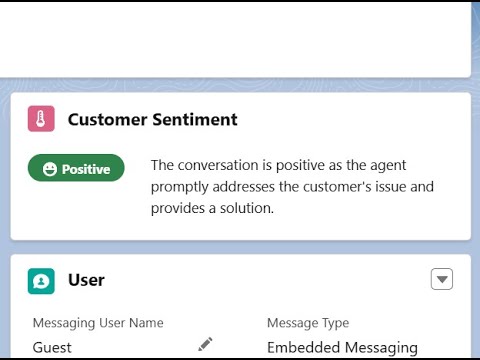
-
Sentiment Analysis powered by OpenAI's GPT-4 Turbo via a tuned Prompt Template for optimal classification.
-
Analysis Display showing:
- An icon representing the sentiment (positive, neutral, or negative)
- The sentiment's classification
- A brief explanation of why the sentiment was classified the way it was
-
Mode can be set via Lightning App Builder:
Real-time: Sentiment is analyzed as the conversation progresses, after each message from the customer is received.Analyze Button: Sentiment analysis is triggered manually, when an "Analyze" button is clicked.Conversation End: Sentiment is analyzed when the conversation ends.
When the conversation ends, the sentiment analysis information is saved to the Messaging Session record.
- Languages currently supported are
English,Portuguese (Brazil),Spanish,GermanandDutch.
- The component fetches the
Messaging SessionID from the Record Page. - The ID is passed to an Apex class, for server-side processing, in which a
Prompt Templateis called for sentiment analysis. - The Prompt Template calls the
GPT-4 TurboLLM for sentiment classification and explanation. This LLM is natively integrated with Salesforce. - The results are returned to the component and displayed dynamically.
- When the conversation ends, the full conversation's sentiment analysis is stored in the Messaging Session record.
- Einstein
⚙️ -> Setup -> Einstein Setup -> Turn on Einstein
- Prompt Templates
With this out of the way, let's get to the instructions:
- Clone this repository to your machine:
git clone https://github.com/f4bioreis/conversation-sentiment-analysis.git
cd conversation-sentiment-analysis
- Deploy the project content to your local org project. Use the following SF CLI command. Make sure to replace
YourOrgAliaswith your org's real alias:
sf project deploy start --target-org YourOrgAlias
Note: if you don't know this information, navigate to your org's root folder and run the following command to fetch it:
sf org display
- Assign the
CustomerSentimentAccessPermission Set to your user:
sf org assign permset -n CustomerSentimentAccess
-
Add the
customerSentimentcomponent to a Lightning Page in the MessagingSession object. -
Set the
Modeproperty to your preferred sentiment analysis event.
Note: if your org has too many active support agents, you might want to avoid using "Real-time" mode, as it consumes more requests to the LLM by nature.
The customers's sentiment analysis is saved to the Messaging Session record when the conversation ends. You can additionally add these fields to the page's layout:
- Sentiment__c
- SentimentExplanation__c
- SentimentExplanationLocale__c
- SentimentAnalysisDate__c
Enjoy! :)