
Present a Markdown file as a slide deck without leaving VS Code.
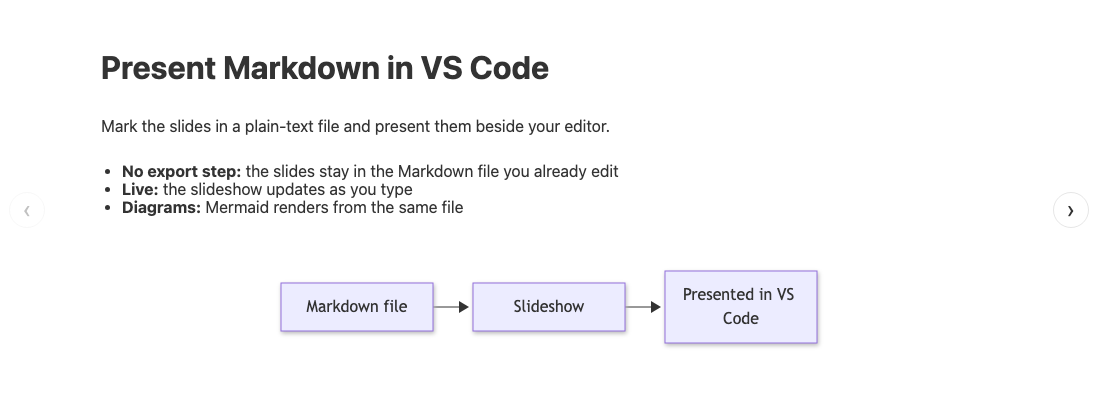
Markdown Presentation Tool turns the slides you mark in a Markdown file into a navigable slideshow beside your editor. It needs no export step, no configuration, and sends no telemetry.
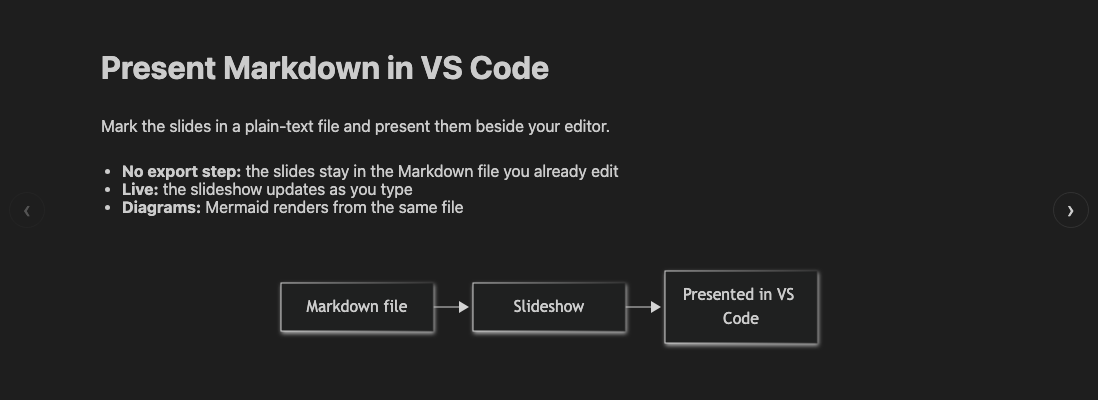
- Your file is the deck: the slides stay in the plain-text Markdown file you already edit.
- Live: the slideshow updates as you type and keeps your slide position.
- Diagrams: Mermaid renders from backtick fences and from Azure DevOps
::: mermaidblocks. - Themes: slides follow your VS Code light or dark theme.
Put <!-- slide --> on its own line to open a slide and <!-- /slide --> on its own line to close it. Only text between the two markers becomes a slide, so notes and drafts stay in the file without showing on screen. The markers are HTML comments, so other Markdown previews hide them.
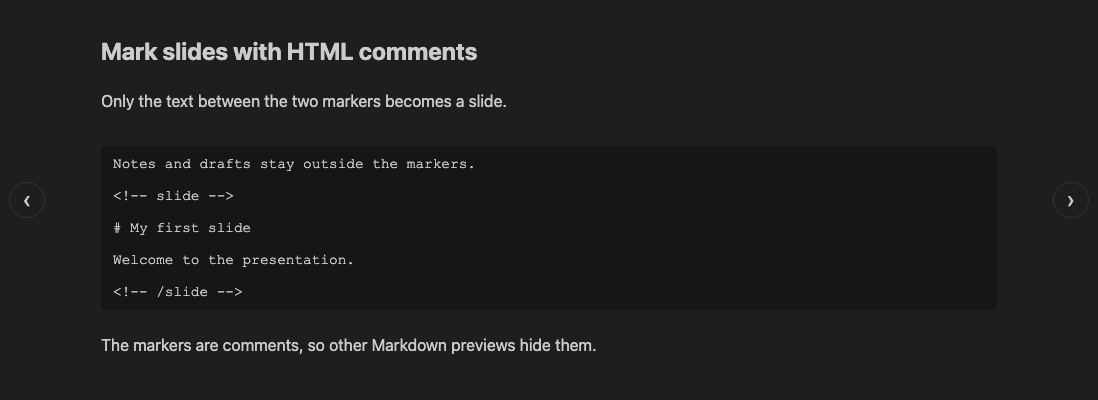
A file with no <!-- slide --> line shows one slide per Mermaid diagram and ignores the text around the diagrams.
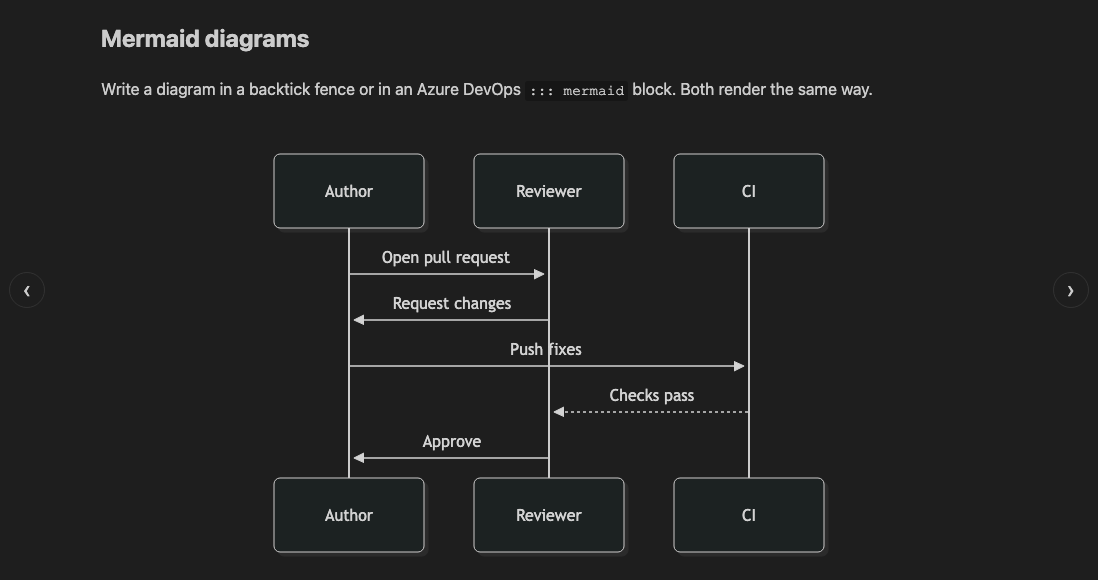
Write a diagram in a backtick fence or in an Azure DevOps ::: mermaid block. Both render the same way. A diagram error or an unreachable network affects that diagram only, and text slides keep working.
Slides render headings, paragraphs, bullet and numbered lists (one level), bold, italic, inline code, fenced code blocks, blockquotes, horizontal rules, and images from https:// addresses.
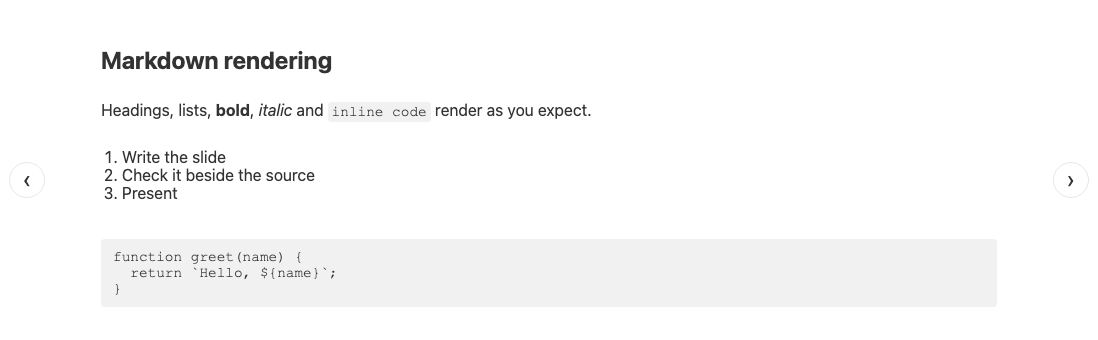
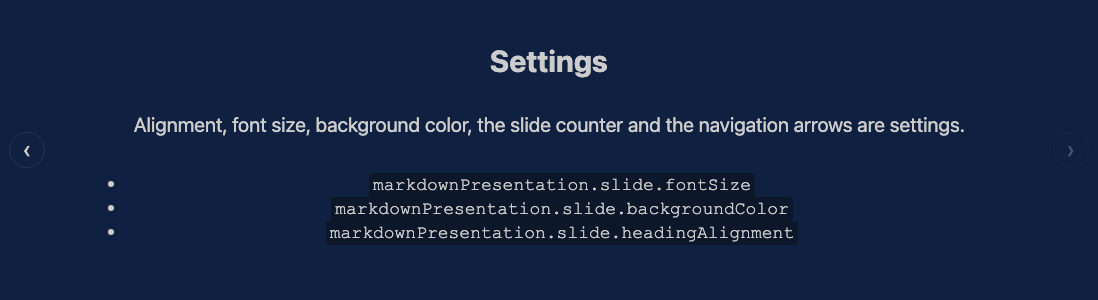
Slides follow the active VS Code color theme, and the Mermaid diagram theme follows it too.
| Dark theme | Light theme |
|---|---|
|
 |
Settings control alignment, font size, background color, the slide counter, and the on-screen arrows. See Settings for the full list.
- VS Code:
- Open the Markdown Presentation Tool page and select Install.
- Or search for "Markdown Presentation Tool" in the Extensions view.
- Open VSX (Cursor, VSCodium, and other forks):
- Install
KunalPathak.markdown-presentation-toolfrom Open VSX.
- Install
- From a
.vsixfile:- Download the file from the GitHub releases and run Extensions: Install from VSIX....
- Requirements:
- The current stable release of VS Code, or any older release back to the
engines.vscodefloor in package.json. - Internet access when a slide contains a Mermaid diagram (see Privacy and security).
- The current stable release of VS Code, or any older release back to the
- Mark your slides. Put
<!-- slide -->on its own line to open a slide and<!-- /slide -->on its own line to close it. - Open the Markdown file in VS Code.
- Start the presentation in either of two ways:
- Select the Presentation icon in the editor title bar.
- Open the Command Palette (
Cmd+Shift+PorCtrl+Shift+P) and runMarkdown: Show Markdown Presentation.
Only text inside an open/close pair becomes a slide. See Mark slides with HTML comments for an example.
| Action | Input |
|---|---|
| Next slide | Right Arrow, Down Arrow, PageDown, Space, or scroll down |
| Previous slide | Left Arrow, Up Arrow, PageUp, or scroll up |
| Scroll in a slide | Shift + scroll, for slides taller than the panel |
| On-screen arrows | Select the arrows at the panel edges |
Open VS Code Settings (Cmd+, or Ctrl+,) and search for Markdown Presentation Tool.
| Category | Setting | Default | Description |
|---|---|---|---|
| Mermaid | markdownPresentation.slide.mermaidTheme |
default |
default (follows the VS Code theme), dark, forest, or neutral |
| Appearance | markdownPresentation.slide.headingAlignment |
left |
left, center, or right |
| Appearance | markdownPresentation.slide.contentAlignment |
left |
left, center, or right |
| Appearance | markdownPresentation.slide.fontSize |
medium |
small (0.85em), medium (1em), or large (1.25em) |
| Appearance | markdownPresentation.slide.backgroundColor |
(empty) | A hex, named, or functional CSS color such as #1e1e1e; other values are ignored |
| UI | markdownPresentation.slide.showCounter |
true |
Show the slide counter in the bottom-right corner |
| UI | markdownPresentation.slide.showNavigationArrows |
true |
Show the on-screen navigation arrows |
- Network use:
- A slide with a Mermaid diagram loads one pinned Mermaid version from
cdn.jsdelivr.net. - A slide with an
https://image requests that image from the host in the address. - The extension makes no other network requests and sends no telemetry.
- A slide with a Mermaid diagram loads one pinned Mermaid version from
- Local access:
- The extension reads the Markdown file you present and your Markdown Presentation settings. It writes no files.
- Content handling:
- Document text is escaped before it enters the slide page.
- The page runs under a strict Content Security Policy that allows only its own script and the pinned Mermaid directory.
- Mermaid runs at its default
strictsecurity level.
- Restricted Mode:
- The extension stays enabled in VS Code's Restricted Mode (untrusted folders), because it executes nothing from the folder.
- Settings input:
- The extension accepts only known values for enumerated settings and a plain CSS color for the background.
- It ignores any other value.
- It does not render tables, clickable links, nested lists, or images from local file paths.
- It does not export to PDF or HTML, and it has no presenter mode or speaker notes window.
- It does not bundle Mermaid, so diagrams need network access.
- decisions.md records why, and what would change each answer.
- Set up and release: docs/development.md covers local setup, checks, CI, and the release process.
- Understand the design: docs/architecture.md explains slide extraction, rendering, and the panel lifecycle.
- Verify a change: docs/testing.md maps each workflow to its checks.
- Keep dependencies current: docs/dependencies.md holds the version and support policy.
- Review deferred ideas: docs/decisions.md lists features that are intentionally not built, with the conditions that would reopen them.
- Pick a task procedure: docs/workflows.md maps each kind of request to its steps and stopping point.
- Find the sibling extensions: docs/sibling-extensions.md lists the other extensions published as KunalPathak and the files they share.
- Report an issue: use the issue tracker.