A zero-terminal, real-time sync engine for Obsidian, powered by your own Cloudflare Worker.
Your notes stay in sync instantly across devices, without conflicted copies, delayed file sync, or database-heavy self-hosting.


No terminal, no .env files, no database setup required.
Most ways to sync Obsidian pick a trade-off. YAOS picks none.
| Conflicts | Real-time | Self-hosted | No terminal | Free | |
|---|---|---|---|---|---|
| iCloud / Dropbox | Conflicted copies | No | No | Yes | Yes |
| Obsidian Sync | Rare | Delayed | No | Yes | $96/yr |
| Git / LiveSync | Manual | Varies | Yes | No | Yes |
| Relay / Screengarden | No | Yes | No | Yes | Freemium |
| YAOS | None | Yes | Yes | Yes | $0 |
YAOS uses Yjs CRDTs to keep one live vault state moving across devices instead of asking them to take polite turns uploading files and hoping nothing collides.
If you want the official, fully managed experience, pay for Obsidian Sync and support the team. If you want a fast, self-hosted, local-first alternative that you fully control, this is YAOS.
YAOS has two parts: an Obsidian plugin and a small Cloudflare server you deploy to your own account. The Worker setup page walks you through the remaining steps, so you don't need to memorize this.
1. Deploy your server Click Deploy to Cloudflare above. Cloudflare creates a Worker in your account.
2. Claim your server Open the Worker URL. Click Claim to lock the server to you and generate your setup token.
3. Install the plugin
YAOS is in the Obsidian Marketplace review queue. To install today, add it through BRAT: open BRAT settings → Add Beta plugin → paste kavinsood/yaos.
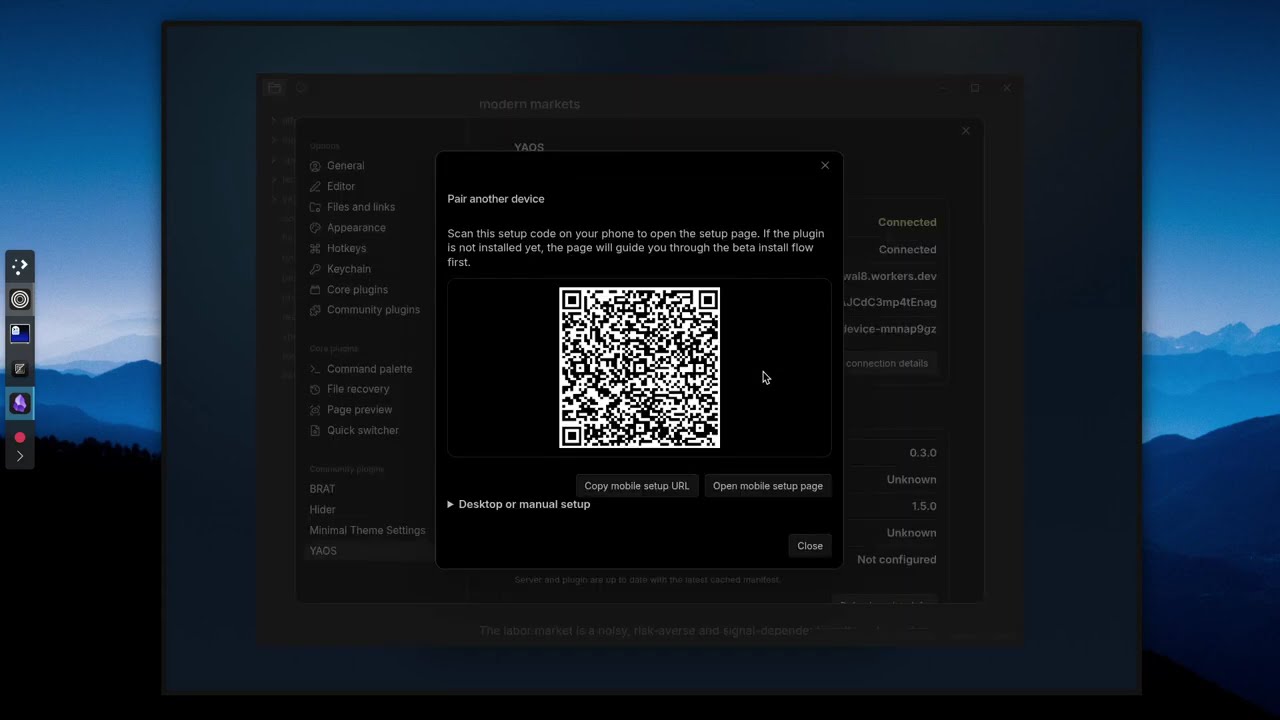
4. Connect your vault From the claim page, open the setup link or scan the QR code. YAOS fills in the connection details automatically.
That's it. Your vault is syncing.
Text sync works out of the box. To sync images, PDFs, and other attachments, add a Cloudflare R2 bucket — it takes about a minute.
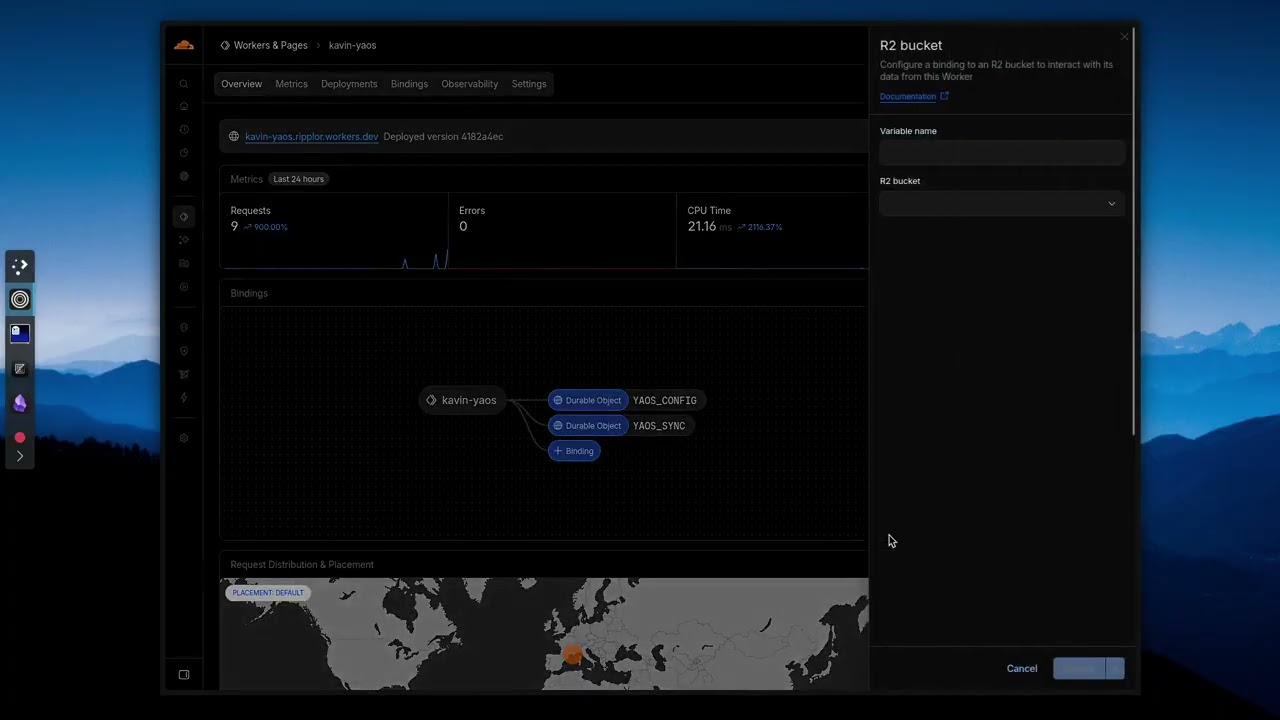
R2 also enables daily automatic snapshots and on-demand point-in-time backups. You can browse snapshots, diff against current state, and selectively restore individual files. If you skip R2, text sync still works perfectly — you just won't have attachment sync or snapshots.
YAOS is designed to be zero-terminal, but because you own your infrastructure, you control when updates apply.
A one-time setup installs a GitHub Actions workflow in your deployment repo. After that, updates are a single click.
- One-time: click Initialize updater in YAOS settings → Advanced. GitHub opens with a pre-filled workflow file. Commit it.
- Update: YAOS notifies you when a new version ships. Click Open update action → Run workflow with
update. - Rollback: same workflow, change action to
revert.
Some releases require manual migration steps. The updater will abort with a clear warning — read the release notes before retrying. Re-clicking Deploy to Cloudflare is not a safe update path for a stateful server; YAOS uses a Git-driven workflow so the same Worker identity, Durable Object bindings, and history are preserved.
Because Obsidian vaults are just local Markdown files, YAOS plays unusually well with scripts, CLI tools, and AI agents that edit files directly on disk. The CRDT state stays aligned with the filesystem, so changes from any source — git, shell scripts, agents writing to disk — propagate cleanly across devices instead of falling back to conflicted-copy workflows.
If you're building agentic workflows on top of Obsidian vaults, YAOS gives you the sync infrastructure so you don't have to wire up your own.
YAOS keeps your vault as normal local files, while also maintaining a shared real-time state for sync.
- Each markdown file gets a stable ID and a
Y.TextCRDT for its content. - All per-file CRDTs live inside one shared vault-level
Y.Doc— this keeps cross-file operations transactional. A folder rename is atomic across all files; the vault structure can't tear. - Live editor edits flow through a Yjs + CodeMirror binding.
- Each vault maps to one Durable Object sync room. The shared state survives server restarts and hibernation.
- Offline edits are stored in IndexedDB and merge on reconnect.
- Attachments sync separately via content-addressed R2 storage instead of being forced through the text CRDT.
- Daily and on-demand snapshots exist as a safety net.
In practice, that means your vault still exists locally as normal files, Obsidian keeps behaving like Obsidian, and YAOS keeps the disk mirror and the shared CRDT state aligned instead of asking devices to take polite turns uploading files later.
This repository keeps deep architecture notes under engineering/. These aren't afterthoughts — they capture the design rationale, trade-offs, and failure modes behind a production CRDT sync engine on Cloudflare Workers.
- Monolithic vault CRDT — Why one vault-level
Y.Doc, what we gain (ACID cross-file transactions), and what we consciously trade off. - Filesystem bridge — How noisy Obsidian file events are converted into safe CRDT updates with dirty-set draining and content-acknowledged suppression.
- Checkpoint + journal persistence — The storage-engine rewrite that removed full-state rewrites and introduced state-vector-anchored delta journaling.
- Attachment sync — Native Worker proxy uploads, capability negotiation, and bounded fan-out under Cloudflare connection limits.
- Zero-config auth — Browser claim UX,
obsidian://yaosdeep-link pairing, and env-token override behavior. - Zero-ops update pipeline — Why detached deploy repos need bootstrap injection, reusable workflows, and migration safety gates.
- Warts and limits — Canonical limits, safety invariants, and the pragmatic compromises currently in production.
YAOS is optimized for personal or small-team note vaults, not for arbitrarily huge text archives. The monolithic Y.Doc design gives excellent real-time ergonomics and simpler cross-file behavior, but it creates a practical ceiling for very large vaults.
If your vault is normal notes, drafts, research, and attachments, YAOS is a great fit. If you want to sync giant text dumps or archival datasets, a simpler file-sync tool is a better choice.
Rule of thumb: around 50 MB of raw text (not counting attachments like images and PDFs) is a comfortable target.
After enabling, go to Settings → YAOS.
| Setting | Description |
|---|---|
| Server URL | Your Worker URL (e.g. https://sync.yourdomain.com) |
| Sync token | Filled automatically by the setup link after claiming |
| Device name | Shown to other devices in live cursors and presence |
| Exclude paths | Comma-separated prefixes to skip (e.g. templates/, .trash/) |
| Max text file size | Skip text files larger than this for live document sync |
| Sync attachments | Enable R2 sync for images, PDFs, and other non-markdown files |
| Max attachment size | Skip attachments larger than this (default 10 MB) |
| Parallel transfers | Number of simultaneous attachment upload/download slots |
| Show remote cursors | Display cursor positions and selections from other devices |
| Edits from other apps | Control how YAOS handles changes from git, scripts, or other editors |
| Debug logging | Verbose console output for troubleshooting |
Manual connection and Advanced sections are available in the settings UI when you need to inspect or override connection details.
Access via command palette (Ctrl/Cmd+P):
| Command | Description |
|---|---|
| Reconnect to sync server | Force reconnect after network changes |
| Force reconcile | Re-merge disk state with CRDT |
| Show sync debug info | Connection state, file counts, queue status |
| Take snapshot now | Create an immediate backup to R2 |
| Browse and restore snapshots | View snapshots, diff against current state, selective restore |
| Reset local cache | Clear IndexedDB, re-sync from server |
| Nuclear reset | Wipe all CRDT state everywhere, re-seed from disk |
"Unauthorized" errors: Token mismatch between plugin and server. Check both match exactly.
"R2 not configured": The server doesn't have a YAOS_BUCKET binding yet. See the R2 setup video.
Sync stops on mobile: Use "Reconnect to sync server" command. Check you have network connectivity.
Files not syncing: Check exclude patterns. Files over max size are skipped. Use debug logging to see what's happening, and then raise an issue on GitHub.
Conflicts after offline edits: CRDTs merge automatically but the result depends on operation order. Review merged content if needed.