Easily manage Python packages within Positron IDE (a VSCode fork) using PyPkgMan, which streamlines package management, integrates with pyproject.toml and requirements.txt, and provides tools for handling virtual environments via uv.
- ✅ 💡 Right click on
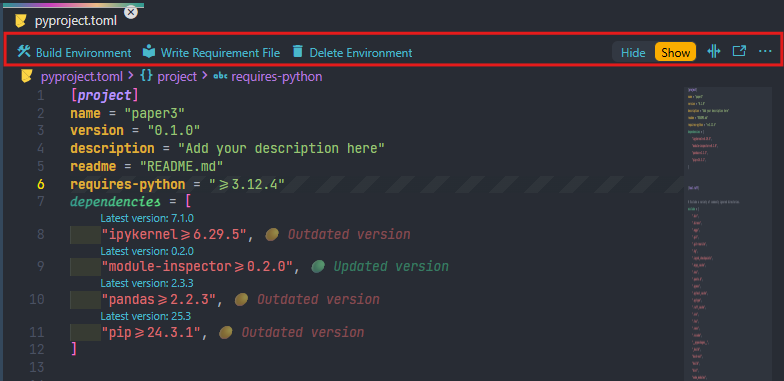
pyproject.tomlfile to manage the virtual environment - ✅ 🔍 Explore metadata of Python packages defined in
pyprojects.tomlandrequirements.txtfile - ✅ 🚀 Create virtual environment and Install packages directly from
pyprojects.tomlandrequirements.txtfile with uv
Positron IDE now includes a native package pane. The PyPkgMan package pane features are now in maintenance mode and are planned for removal in a future release.
If you prefer the native Positron pane today, disable the PyPkgMan pane with:
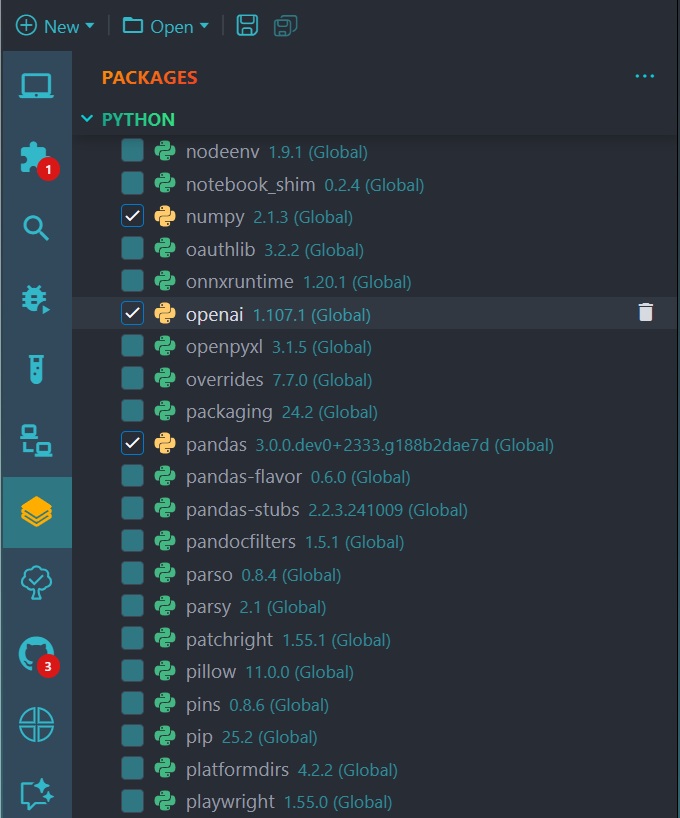
"positronPythonPackageManager.enablePackagePane": false- ✅ 🔍 View all installed packages and loaded packages in a tidy sidebar. When hovering the loaded packages'name, a tooltip will show to display the information of name alias, sub-modules imported
- ✅ 🚀 Install and Uninstall packages directly from pane with a single click
- ✅ 🔍 Search installed packages by name or title (fuzzy search supported)
- ✅ ⚙️ Check the box to import packages. Due to the complexity of importing package conventions in Python, check the box will import the entire package. Importing python package usually requires to be declared explicitly
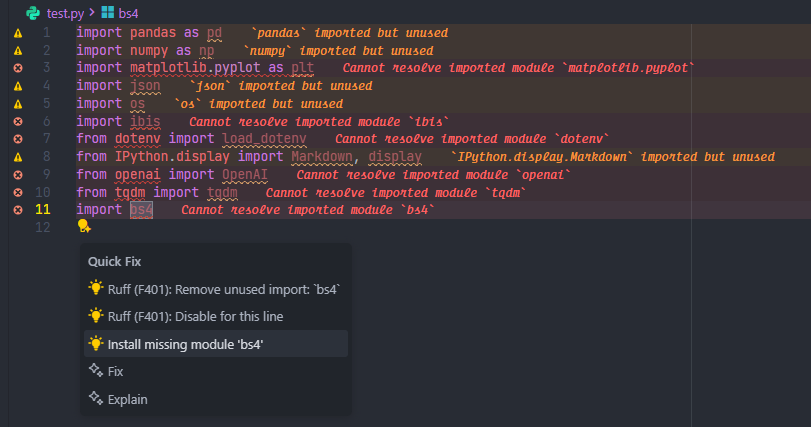
- ✅ 💡 Provides quick-fix actions to install missing packages
- Positron version
2025.09.0-139or later uvif you want to manage virtual environmentpipandmodule-inspectormust be installed in the Python runtime.- Python installed and working inside Positron
- This extension must run in the workspace (remote/WSL/container supported ✅)
This extension provides the following settings:
-
pythonProject.codeLens: (boolean, default:false)
Enable/disable latest package version CodeLens inpip-requirementsandpyproject.tomlfiles. -
positronPythonPackageManager.enableVersionDecorations: (boolean, default:false)
Enable decorations showing if package versions are up-to-date or outdated inpip-requirementsandpyproject.tomlfiles -
positronPythonPackageManager.enablePackagePane: (boolean, default:false)
Enable or disable the PyPkgMan package pane in the activity bar. -
missingPackageInstaller.autoInstall: (boolean, default:false) Automatically install missing Python modules without prompting.Custom pip command to use for installing modules.
You can configure this setting in your VS Code settings (settings.json) or through the Settings UI.
PyPkgMan lets you customize how the quick-fix installer runs via the workspace setting missingPackageInstaller.customPipCommand (default: pip install). The extension supports two template placeholders:
{python}— replaced with the resolved Python interpreter path (PowerShell-safe on Windows). Use this when you need the interpreter inserted into the command explicitly.{module}— replaced with the package/module name being installed.
Examples
-
Default (recommended):
"missingPackageInstaller.customPipCommand": "pip install"
This runs:
"<interpreter>" -m pip install <module>so the install targets the active interpreter. -
Add flags (still using pip through the interpreter):
"missingPackageInstaller.customPipCommand": "pip install --upgrade"
Runs:
"<interpreter>" -m pip install --upgrade <module> -
Use the interpreter directly (full control):
"missingPackageInstaller.customPipCommand": "{python} -m pip install --no-cache-dir {module}"
Runs exactly what you specify, replacing
{python}and{module}. -
Poetry (direct CLI):
"missingPackageInstaller.customPipCommand": "poetry add {module} --dev"
Runs
poetry add <module> --devdirectly; make surepoetryis on PATH or provide a full path. -
Conda (direct CLI):
"missingPackageInstaller.customPipCommand": "conda install -y {module}"
Notes and caveats
- If you pick a direct CLI (poetry/conda/uv), the command runs as-is in the integrated terminal — ensure the tool is available on PATH in the shell used by the terminal.
- For shells that require activation (e.g., conda activate), prefer using
{python}to target the interpreter or configure an activation+install template that works in a non-interactive integrated terminal. - On Windows, the extension injects the interpreter using PowerShell-friendly quoting (e.g.
& "C:\\path\\to\\python.exe"). - If you need a very custom environment setup (activation, shell functions), consider creating a small wrapper script that performs activation then runs the install, and point
customPipCommandto that script.
- Clicking on package's name doesn't show its documentation in Help pane due to the different in package name and module imported. For example, the package name is pyjanitor but it is imported as
import janitor
- Update package to a specific version
- Provide multiple way to install packages from .whl, .tar.gz file
Created by ntluong95
Licensed under the MIT License