A more permissive version of the Linux Terminal app with finer VM permission control, forked from the GrapheneOS repo, supporting custom virtual machine images (such as Secureblue). Currently in proof-of-concept stage.
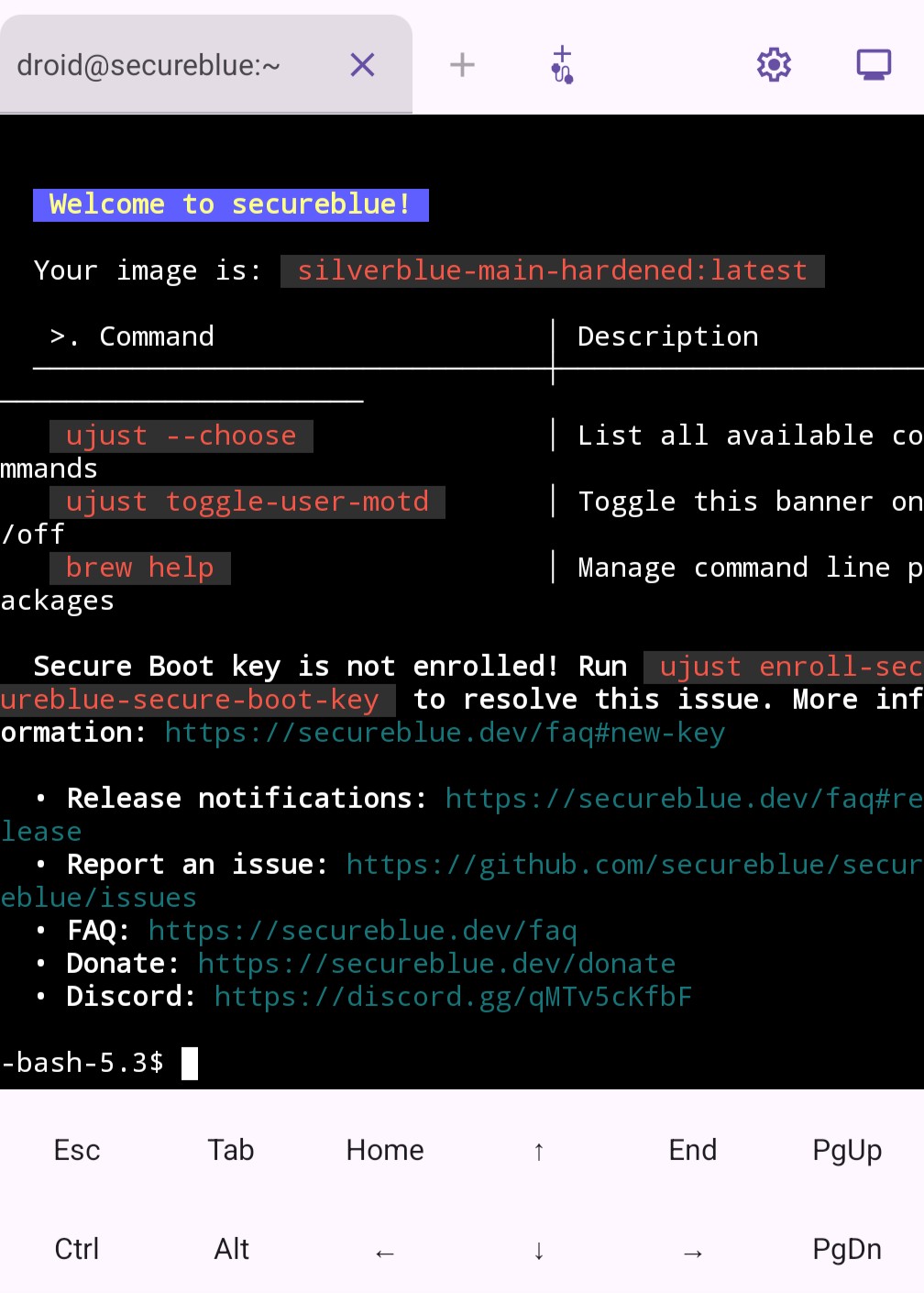
The main goal is to allow users to install this as a non-system, standalone app on a non-rooted device, and run a full VM with a Linux image that is not provided by Google. And does not rely on Google's image for installation. Because, come on, there was a NestBox app by kdrag0n that was able to do this years ago! Unfortunately, it was not maintained and stopped working on newer OS versions.
This repo also has an upstreamable branch that can potentially be merged into GrapheneOS, if they ever decide to do anything with it.
Once this repo is in a more presentable state (>=3 distros successfully supported), this document will be rewritten to be more user-friendly instead of only dev-friendly.
koi stands for KVM with Other Images. Perhaps.
Important
This app does not yet work out-of-the-box, and does not yet have an in-app setup tutorial. Please follow the How to use section for setup.
- Boots a user-provided Linux VM image
- Provides images for other distros (Secureblue, NixOS, Alpine)
- Exposes VM files (configs, storage, etc.) to enable modifying VM configurations
- Does not force you to give the VM access to all files
- No rooting necessary, requiring only a one-time permission grant using ADB.
- Can connect to the VM using the serial console, which enables:
- Booting from (almost) fresh OS installs
- Supporting using the
Block connections without VPNsetting - Changing font size :)
- Booting from installation media using u-boot (instructions to come)
- Proof-of-concept pre-alpha test-build software, provided AS-IS. Beware of sharp edges, and back up often. You have been warned.
- The app is only tested on newer devices running the latest GrapheneOS, so it would be nice to know if it works for other OSes at all. Many Android-based OSes and devices do not support Android Virtualization Framework, and may not be based on the latest version of AOSP. In addition, 6th-generation Pixels require root to use AVF, so they are not supported. This project does not aim to continuously support lower OS versions.
- There is a decent chance that this will be abandonware, especially if a major part of this is upstreamed to GrapheneOS. Again, AS-IS.
- Known sharp edges:
- Just crashes when files referenced in
vm_config.jsonare not found, without indicating which. - Some images have issues, such as Alpine having network issues, and Secureblue not shutting down properly. See IMAGES.md for details.
- Console output (kernel messages, serial console IO) is still logged in a file. This needs to be opt-in.
- Just crashes when files referenced in
Goals are mainly targeted at things that neither Google nor GrapheneOS is inclined to do in the near future. These goals may change, and they may or may not be achievable. We will have to see.
- Get the app to compile under a different package name
- Fix issues that prevent booting a VM
- Get a modified version of Google's image to run and show its terminal
- Allow communication with the VM using the console instead of ttyd
- Stops requiring
Block connections without VPNto be off Allows a "raw" image to run- It does not seem that many distros can run well out-of-the-box due to kernel issues, implying that special images need to be built anyway. This advantage may be only useful for tinkereres.
- Stops requiring
- Make a new image that is not Debian
- High priority FIXME for serial console
- Make an image based on Debian build script
- Make an image based on nixos-avf
- Make an image based on Secureblue
- Bug fixes and polishing to celebrate initial Secureblue image
- Allow being revoked INTERNET; automatically airgap VMs when INTERNET revoked
- Build-time signature verification for Secureblue
- (stretch) Build 6.12 LTS vanilla kernel RPM package for Secureblue?
- Fix Secureblue image
- Add support for ttyd, shutdown, port forwarding, etc.
- (stretch) support some form of checkpointing to enable templates / disposable
- Try bundling the compiled crosvm binary when building GrapheneOS. See: https://u1f383.github.io/android/2025/06/15/run-native-binary-on-android.html
- Try passing file descriptors to avoid permission issues
- Implement a super-config system, including support for multiple
vm_config.jsonfiles for different modes (install, update, use, isolated software, airgap...) or just different VMs. - FIXME for serial console
- Make pty changes work
- Make mouse work in serial terminal
- Find out which kernel versions and what configurations work. How about 6.6 LTS?
- "VM already exists" bug
- (stretch) Enable forcing the VM to use the host vpn
- Enable trying to keep the VM alive in the background
- Write a install guide inside the app
- Support
images.zipin addition toimages.tar.gz - (stretch) Compile u-boot
- Boot from installation media using u-boot
- (stretch) Add back gutted features
- Something to replace virtiofs (seamless file sharing)
- Something to replace dynamic VM storage resizing
- Make the display work
- Make the mouse work (offset issue)
Suggested by community:
- Only applies to ttyd:
- Changing font size (MainActivity.kt#L251)
- Fix backspace bug, I mean wtf.
Suggested by community, but either may not be easily done or Google is better suited to do it:
- USB support
- Custom fonts. Reference: https://github.com/tsl0922/ttyd/wiki/Serving-web-fonts (need to recompile ttyd)
After installing, the app needs to be given access to storage and VM permissions.
For the storage permission, go to Settings -> Apps -> Special app access -> All files access -> koiTerminal.
The VM permissions are trickier. These non-standard permissions require granting via adb. You can use a desktop, or use Termux as follows:
pkg install android-tools # for Termux, install adb
# Now, turn on developer options and enable wireless debugging. Then,
adb pair localhost:????? # fill in the value from developer options
adb connect localhost:????? # fill in the value from developer options
adb shell pm list users # owner's ID is 0, others' can be obtained here
adb shell pm grant --user ?? com.android.virtualization.koiterminal android.permission.MANAGE_VIRTUAL_MACHINE # fill in the user ID
adb shell pm grant --user ?? com.android.virtualization.koiterminal android.permission.USE_CUSTOM_VIRTUAL_MACHINE # fill in the user ID
# Don't forget to turn off wireless debugging afterwards.
Special setup using GrapheneOS-specific permissions:
- You can use Storage Scopes and grant the
linuxfolder (see below for location) instead of full storage access. - You can either keep the Network permission on, or follow these to airgap the VM and the app:
- Deny the Network permission to koiTerminal.
- Follow the rest of this guide, but make sure to avoid VM images that do not support the serial console and rely on the network-based terminal emulator.
- Wait for the app to crash after installing the VM image, with an exception that complains about missing Network permission.
- Go to the exposed internal files, and change
"network": true,to"network": false,inlinux/vm_config.json. - Relaunch the app.
Google's official image will not work as its setup requires extra permissions to enable virtiofs (seamless folder sharing between host and VM).
This project provides the following images (and image building guides for those wishing to customize further):
- SecureBlue
- Debian built from Google's scripts
- NixOS adapted from nixos-avf
- (Buggy for now) Alpine
- (Deprecated) Modified Debian from Google
And coming soon (probably):
- Archlinux adapted from arch-arm64-avf
- Running ISO-based OS installer
Please find the links and instructions for each distribution here: 📀 IMAGES.md
Note that these images are built or modified so that the kernel version is closer to 6.1 or at least no higher than 6.12. It seems from experience that, for some devices, anything higher than 6.6 will not run properly or straight-up refuse to boot.
The image (image.tar.gz) should be placed in a linux folder which sits at the "root" folder of your user, next to Android/, Download/, etc. For Storage Scopes on GrapheneOS, grant access to the linux folder.
user root
|
+- Android/
|
+- Download/
|
+- linux/
|  |
|  +- image.tar.gz
|
+- (everything else)
The app should automatically install the image. After the install, it should be able to show the terminal in at least one of two ways:
(1) If the image supports ttyd (right now the NixOS and Debian images), then the terminal should just appear.
If you are using a VPN, it may block the local connection used to communicate with the VM.
Make sure to turn off Block connections without VPN in the system settings, and enable your VPN's local network access if it also blocks local connections.
(2) If the image supports the serial console, you can press the add serial console tab button (plus sign with a tail 
Block connections without VPN option and connects directly to the VM.
Note the VM is still outside the VPN, connected straight to the Internet.
This console uses code from Termux, and inherits some of its features like zooming.
However, each VM can have only one serial console tab, unlike the multi-tab ttyd.
Just like the official Linux Terminal app, if it throws an error, or if it is stuck, try force-stopping and restarting the app, or use the recovery button to wipe and start over.
Please see BUILD.md.
All new files and files from upstream GrapheneOS: released under Apache 2.0. See LICENSE. See upstream license NOTICE.
Folders from Termux: released under the same license as terminal-view and terminal-emulator directories from Termux (Apache 2.0). See their LICENCE.md. These include:
- Files under
android/TerminalApp/java/com/termux
Vector graphics:
- Carp in the icon public domain.
- Serial connection CC0