Tools to display the Linux console/framebuffer using a ST7789 SPI 320x170 1.9" TFT display and Raspberry Pi 1 model B 512MB running Raspbian 10 (Buster). The whole code is ready for this scenario, but can be adapted to yours. Each file at the top have options that can be changed like the display size, offset, SPI speed and so on.

- constant.c: CPU hungry version that constantly updates the screen, may update screen faster than the
partialversion - partial.c: Less CPU hungry because updates only what changed from the previous frame, usually update screen slower than the
constantversion
Aside from their algorithm difference, both have these same features:
- Use legacy dispmanx API/driver to leverage GPU
- Optional show FPS
- Optional interlaced video
Here is my /boot/config.txt settings:
disable_overscan=0
framebuffer_width=320
framebuffer_height=170
framebuffer_depth=16
sdram_freq=600
arm_freq=1000
dtparam=audio=on
hdmi_group=2
hdmi_mode=87
hdmi_cvt=320 170 60 1 0 0 0
hdmi_force_hotplug=1
dtparam=spi=on
max_framebuffers=2
gpu_mem=128
core_freq=500
over_voltage=6
Basically full overclock and match the resolution of the TFT display, but you can use higher framebuffer resolutions (than the TFT), the tools will scale it down to match the display resolution, but that will make things harder to read and a little blurry
First install the pre-requisites:
wget http://www.airspayce.com/mikem/bcm2835/bcm2835-1.75.tar.gz
tar xvfz bcm2835-1.75.tar.gz
cd bcm2835-1.75
./configure
make
sudo make install
Then clone this repo and run make, that will create both tools binaries. Now run with sudo, ex: sudo ./partial
Tip
Don't forget to edit the tools .c file to tweak the settings and enable/disable the features you want before compiling them

VCC              -> 3.3V (Pin 1)
GND              -> GND (Pin 6)
SCL (SCK)        -> GPIO 11 (SPI0 SCLK, Pin 23)
SDA (MOSI)       -> GPIO 10 (SPI0 MOSI, Pin 19)
RES (Reset)      -> GPIO 25 (Pin 22)
DC (Data/CMD)    -> GPIO 24 (Pin 18)
CS (Chip Select) -> GPIO 8 (SPI0 CE0, Pin 24)
BL (Backlight)   -> 3.3V (Pin 1)
| Tool | Framebuffer Resolution | Tool CPU Usage % | doing what? |
|---|---|---|---|
| constant | 320x170 | 79-84 | console idle |
| constant interlaced | 320x170 | 78-84 | console idle |
| constant | 640x340 | 75-84 | console idle |
| constant interlaced | 640x340 | 75-84 | console idle |
| partial | 320x170 | 60-70 | console idle |
| partial interlaced | 320x170 | 54-60 | console idle |
| partial | 640x340 | 60-65 | console idle |
| partial interlaced | 640x340 | 52-60 | console idle |
In conclusion use the partial interlaced for best performance
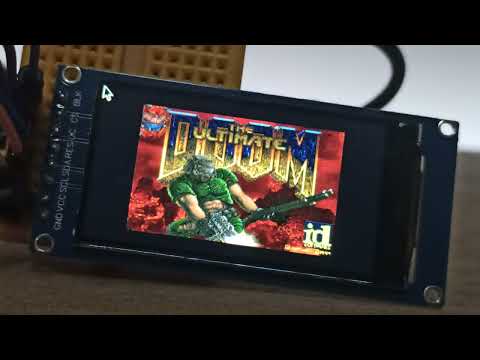
Here's a demo using the partial tool, no interlacing and framebuffer same resolution as display (320x170):
Interlaced text:

Normal text:

Interlaced image:

Normal image:

640x340 framebuffer (scaled down to 320x170 display automatically by the tool), text:
 640x340 framebuffer (scaled down to 320x170 display automatically by the tool), image:

Yes, the tool won't interfere with the HDMI. The HDMI options in the /boot/config.txt are also optional
I couldn't get an HDMI signal for such small resolution like 320x170, but once I increased to 320x200 my monitor detected the HDMI signal and showed the same as the display, they will mirror each other
Is there any performance hit by using a framebuffer/console resolution higher than the display resolution, since it needs to be scale down to fit?
I haven't noticed any difference in performance, check comparison table above
Yes you can use the 3.5mm audio jack or HDMI output:
https://github.com/themrleon/rpi-experiments?tab=readme-ov-file#audio
I tried that and didn't notice any difference, by default it's 32Mhz, for the 320x170 display that seems to be maxed out already, the bottleneck is the Pi CPU itself!
Make sure to be on the same environment I targeted: http://downloads.raspberrypi.com/raspios_oldstable_armhf/images/raspios_oldstable_armhf-2023-05-03/2023-05-03-raspios-buster-armhf.img.xz

Some models like this one have an internal framebuffer size bigger than the display resolution, so we have to always compensate that by putting a 35px offset from the top (idk why they don't simply compensate/abstract that internally to avoid all this hassle for us)
I decided to do my own tools since I already spent a huge amount of time without success with:
- https://github.com/juj/fbcp-ili9341 (edit: got it working later, details here)
- The drivers included in the OS (
fb_st7789vandfbtft)
$ modinfo fb_st7789v
filename:       /lib/modules/5.10.103+/kernel/drivers/staging/fbtft/fb_st7789v.ko
license:        GPL
author:         Dennis Menschel
description:    FB driver for the ST7789V LCD Controller
alias:          platform:st7789v
alias:          spi:st7789v
alias:          platform:fb_st7789v
alias:          spi:fb_st7789v
srcversion:     BF07DFBB8EEBB1E7159E694
alias:          of:N*T*Cfbtft,minipitft13C*
alias:          of:N*T*Cfbtft,minipitft13
alias:          of:N*T*Csitronix,st7789vC*
alias:          of:N*T*Csitronix,st7789v
depends:        fbtft
staging:        Y
intree:         Y
name:           fb_st7789v
vermagic:       5.10.103+ mod_unload modversions ARMv6 p2v8
$ modinfo fbtft
filename:       /lib/modules/5.10.103+/kernel/drivers/staging/fbtft/fbtft.ko
license:        GPL
srcversion:     D9040A657CB2AD182932EE2
depends:        fb_sys_fops,backlight,syscopyarea,sysfillrect,sysimgblt
staging:        Y
intree:         Y
name:           fbtft
vermagic:       5.10.103+ mod_unload modversions ARMv6 p2v8
parm:           debug:override device debug level (ulong)
- Custom overlays with the drivers mentioned bove
- Also tried some Python solutions but they ended up all being too slow compared to C
No, for a far better option, try an ILI9341 based display with the fbcp-ili9341 lib, details here