User Getting Started
BLXCode is a desktop app for AI-assisted development. It combines workspaces, terminal grids, an agent panel, project memory, tasks, and an embedded browser in one Tauri shell.
Install:
- Rust stable and Cargo.
- The
wasm32-unknown-unknownRust target. - Trunk.
- Cargo Tauri CLI.
- Tauri 2 system dependencies for your operating system.
rustup target add wasm32-unknown-unknown
cargo install trunk tauri-cli
Linux users also need the WebKitGTK and native build dependencies required by Tauri 2. Package names vary by distribution.
From the repository root:
cargo tauri devThis launches the Tauri app and automatically starts Trunk using the command configured in src-tauri/tauri.conf.json. Trunk serves the frontend at http://localhost:1420.
On first launch, BLXCode shows the EULA gate in your detected UI language. Accepting it stores a local blxcode_eula_v2 flag in browser local storage. Declining exits the app. BLXCode supports 14 UI locales; see UI Language to change the language or review the full list.
After accepting, the workbench opens. In the desktop shell, BLXCode also creates a default sandbox folder under the app data directory so the agent always has a writable fallback workspace.
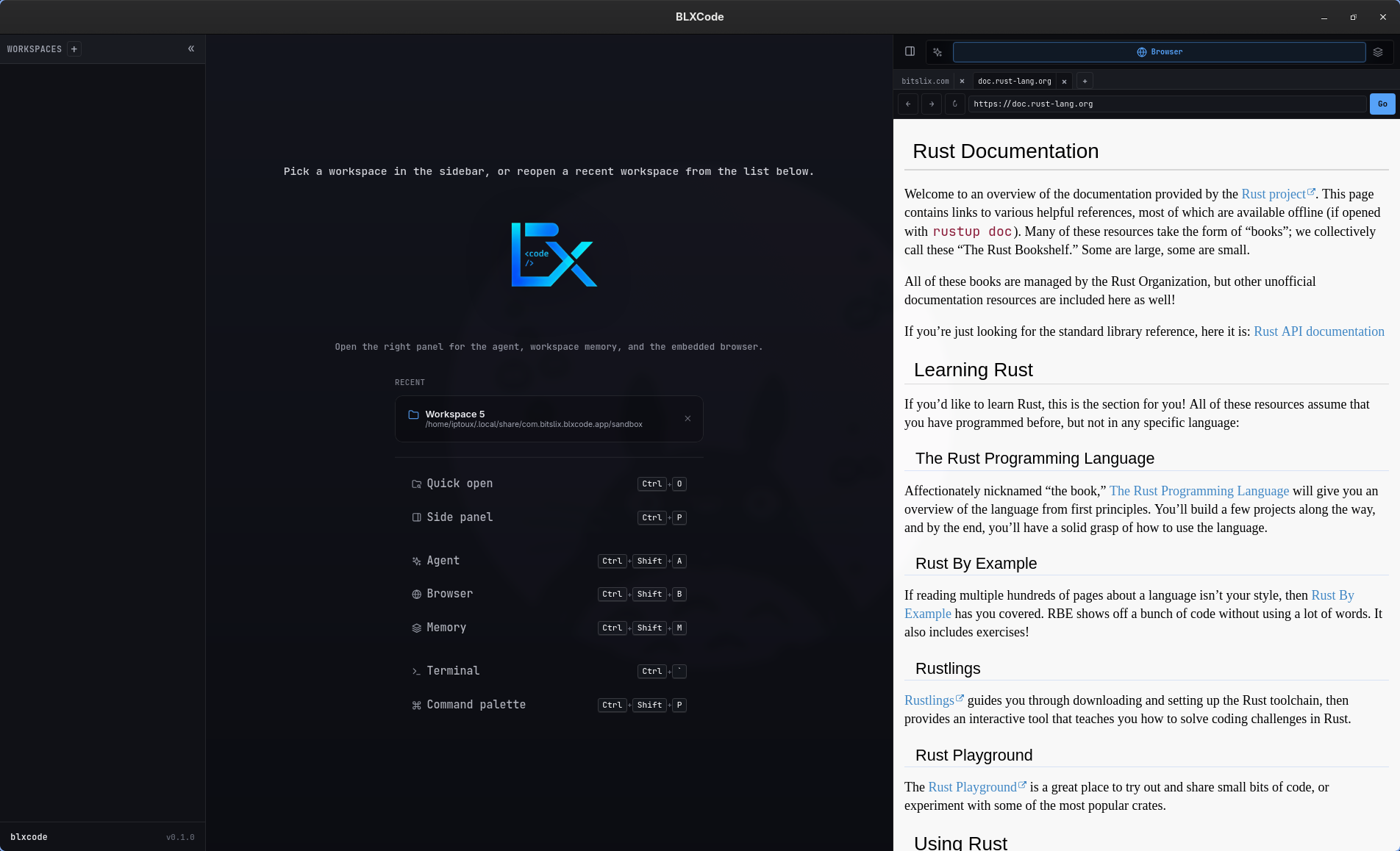
- Open the workspace creation flow from the sidebar.
- Choose a folder. The picker defaults to your home directory in the desktop shell.
- Pick a terminal count. Supported presets include
1,2,4,6,8,9,12, and16. - Optionally assign terminal slots to coding agents such as Claude, Codex, Gemini, OpenCode, or Cursor.
- Confirm the workspace to open the terminal grid.
Workspace layout and recent workspace state are persisted by the Tauri backend and restored on the next launch. With agent hooks installed, terminal slots can resume prior Claude/Codex/Gemini/OpenCode/Cursor sessions and surface completion badges in the sidebar—see Workspaces.
Open Settings from the command palette (center tab). See Settings.
- API Keys — add OpenRouter, Anthropic, OpenAI, and optional Tavily/Brave keys.
- BLXCode Agent — pick text provider, model, thinking level; configure image/voice and web-tool backend.
- Workspace — optional default project folder, sandbox root, and memory category colors.
Keys use the OS keyring when available, with BLX_* env fallback. The agent ships core harness skills (built-in tool guides) — see Agent Harness.
Workspace-local data is stored inside the workspace folder:
.agents/memory/          # notes; subfolders = categories
.agents/learnings/      # repo learnings
.agents/plans/           # Markdown plans + PLANS.md index
.agents/rules/           # binding rule-*.md files
.agents/skills/          # skill folders with SKILL.md
.blxcode/tasks/          # task store (JSON)
.blxcode/generated/      # images from Image mode (when saved)
.blxcode/agent-context/  # handoff image exports + manifest
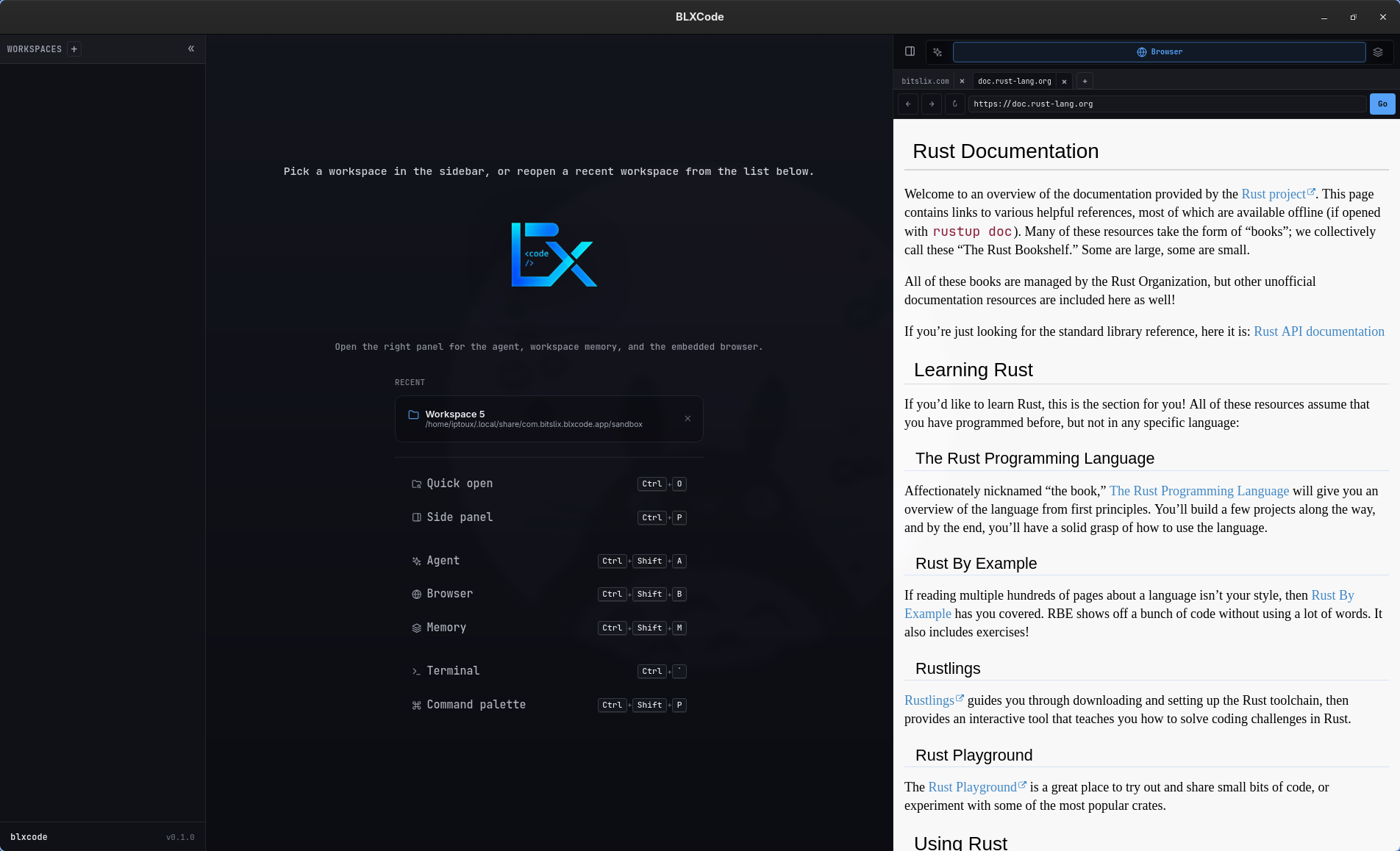
Opening or switching to a workspace runs workspace_ensure_agents, which creates the .agents/ layout and migrates legacy memory when needed.
Next steps:
- Workspaces — terminals, sidebar explorer, handoff
- Memory And Tasks — notes, graph, categories
- Plans — plan Markdown and plan-linked tasks
- Rules And Skills — workspace rules and skills (core + user)
- Agent Harness — core skills, shell/git/web tools
- Subagents — parallel agent runs
- Keyboard Shortcuts — tmux prefix vs legacy mode
- Image Mode — generate images from the agent panel
App layout, provider settings, and secrets live in platform-specific Tauri app config or app data directories.
cargo tauri buildThe configured bundle targets are controlled by src-tauri/tauri.conf.json.
For platform-specific Linux, macOS, and Windows instructions, see Building BLXCode.