User Workspaces
A BLXCode workspace is a project folder plus the UI state needed to work inside it: terminal grid, split panes, assigned agent labels, agent timeline, embedded browser tabs, recent workspace data, and right-panel layout.
The workspace configurator lets you:
- Select or create a project directory.
- Type
cd ...style navigation commands for fast path movement. - Pick a terminal-grid preset.
- Assign terminal slots to a fleet of coding tools.
- Skip agent assignment when you only want plain terminals.
The supported fleet labels are:
claudecodexgeminiopencodecursor
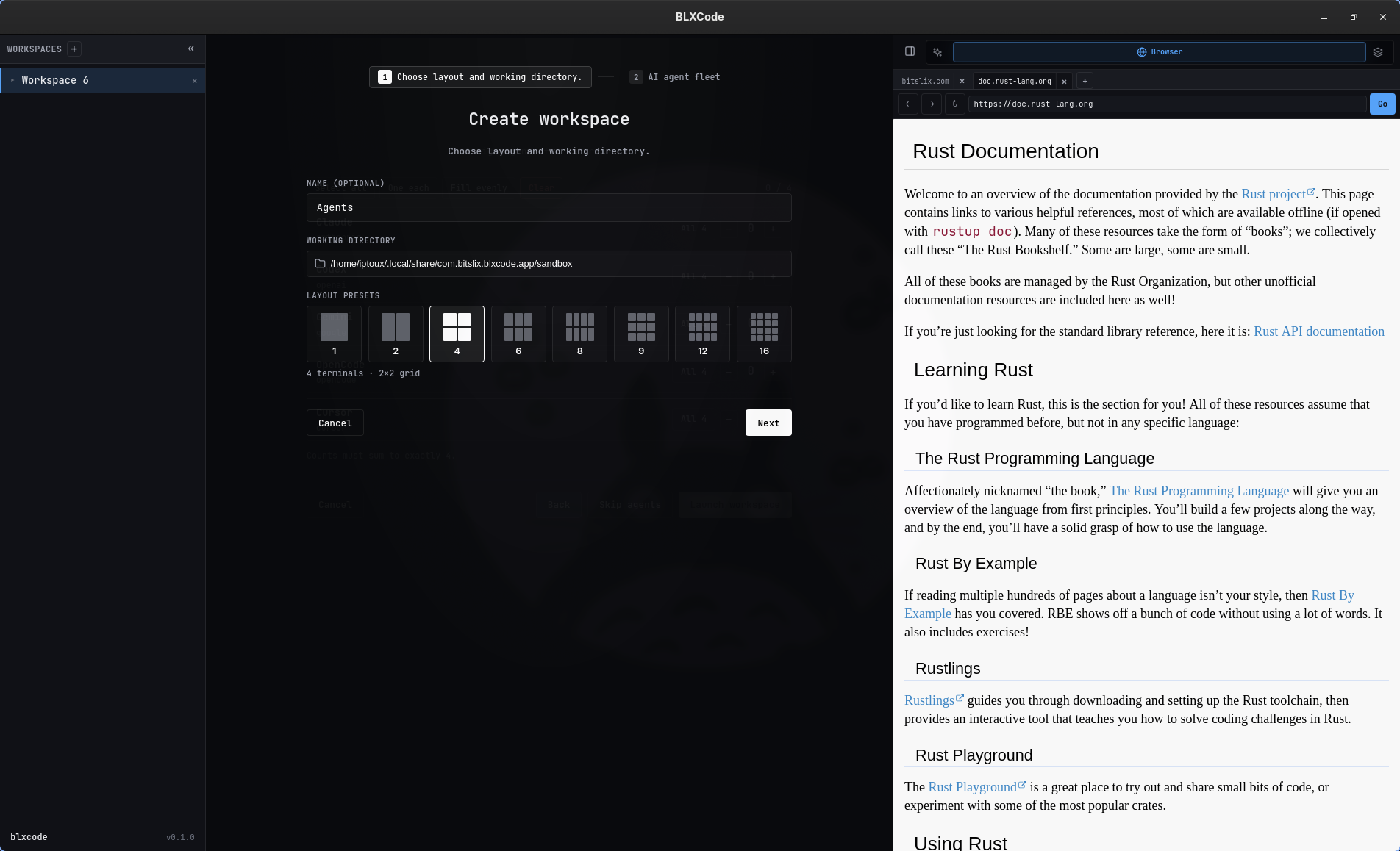
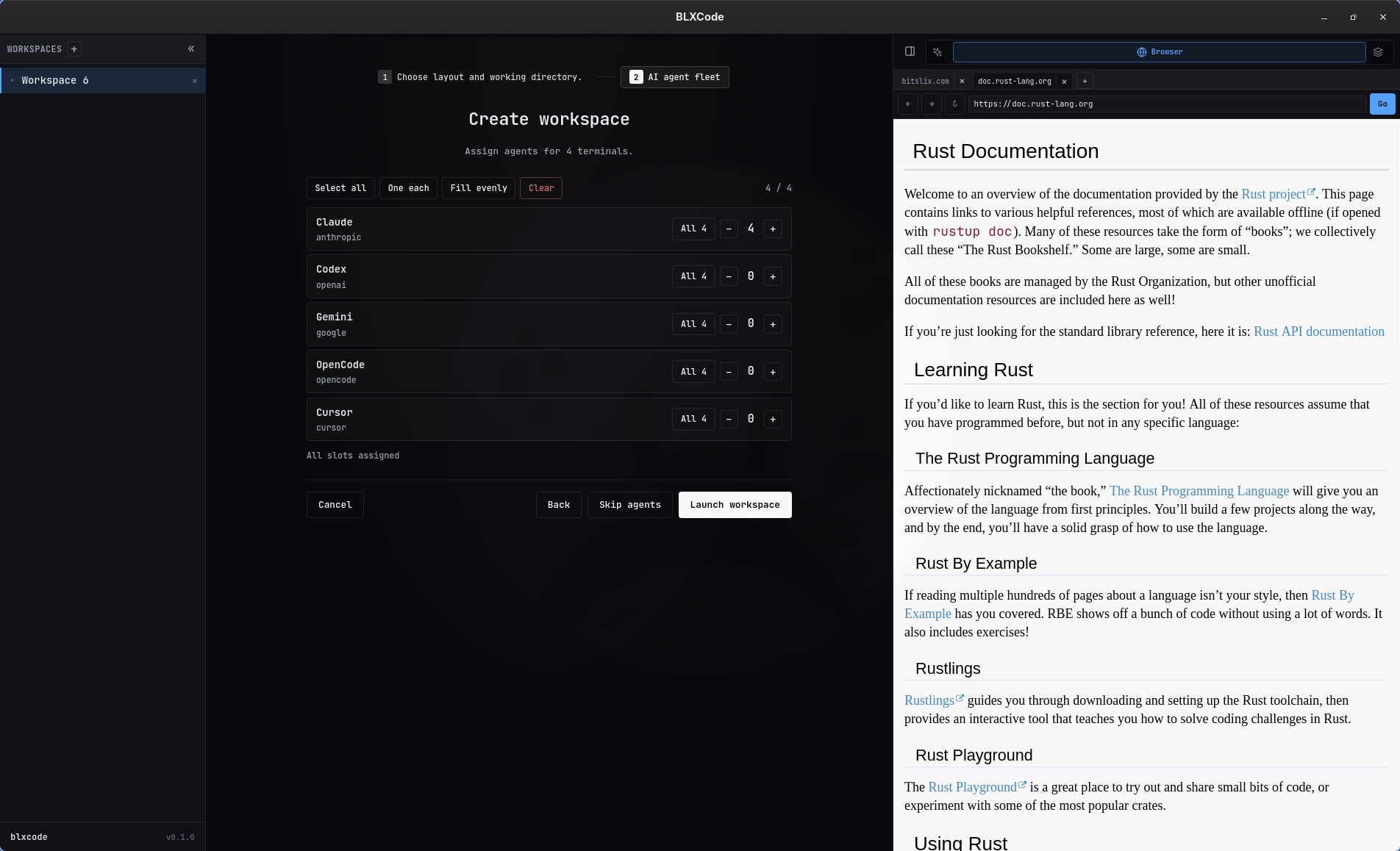
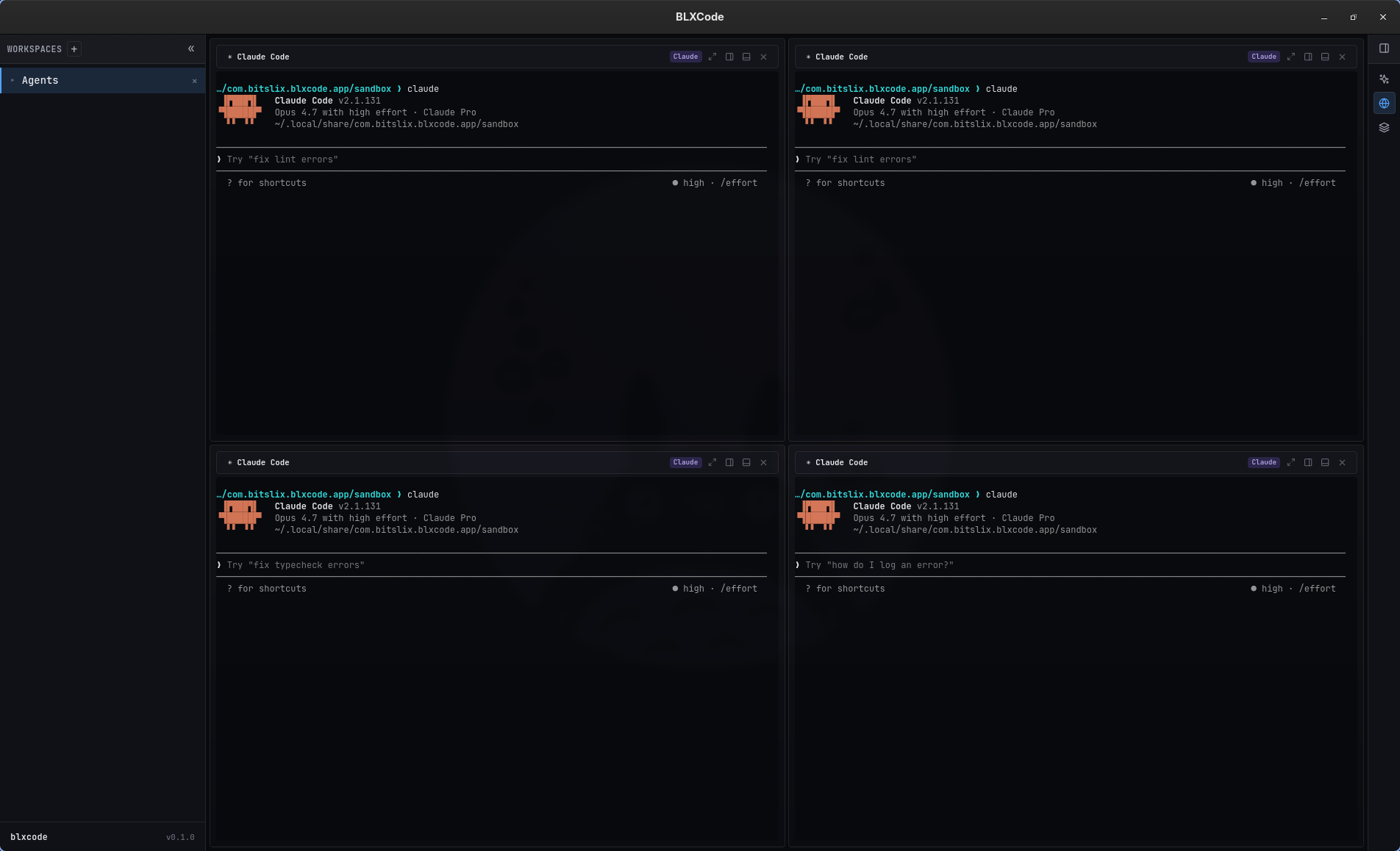
Each workspace has a top-level terminal grid. Preset counts map to balanced grid dimensions:
| Terminals | Grid |
|---|---|
| 1 | 1 x 1 |
| 2 | 1 x 2 |
| 4 | 2 x 2 |
| 6 | 2 x 3 |
| 8 | 2 x 4 |
| 9 | 3 x 3 |
| 12 | 3 x 4 |
| 16 | 4 x 4 |
Individual terminal slots can also keep split-pane state. BLXCode persists pane IDs, split axis, and terminal layout so the workbench can restore the surface after restart.
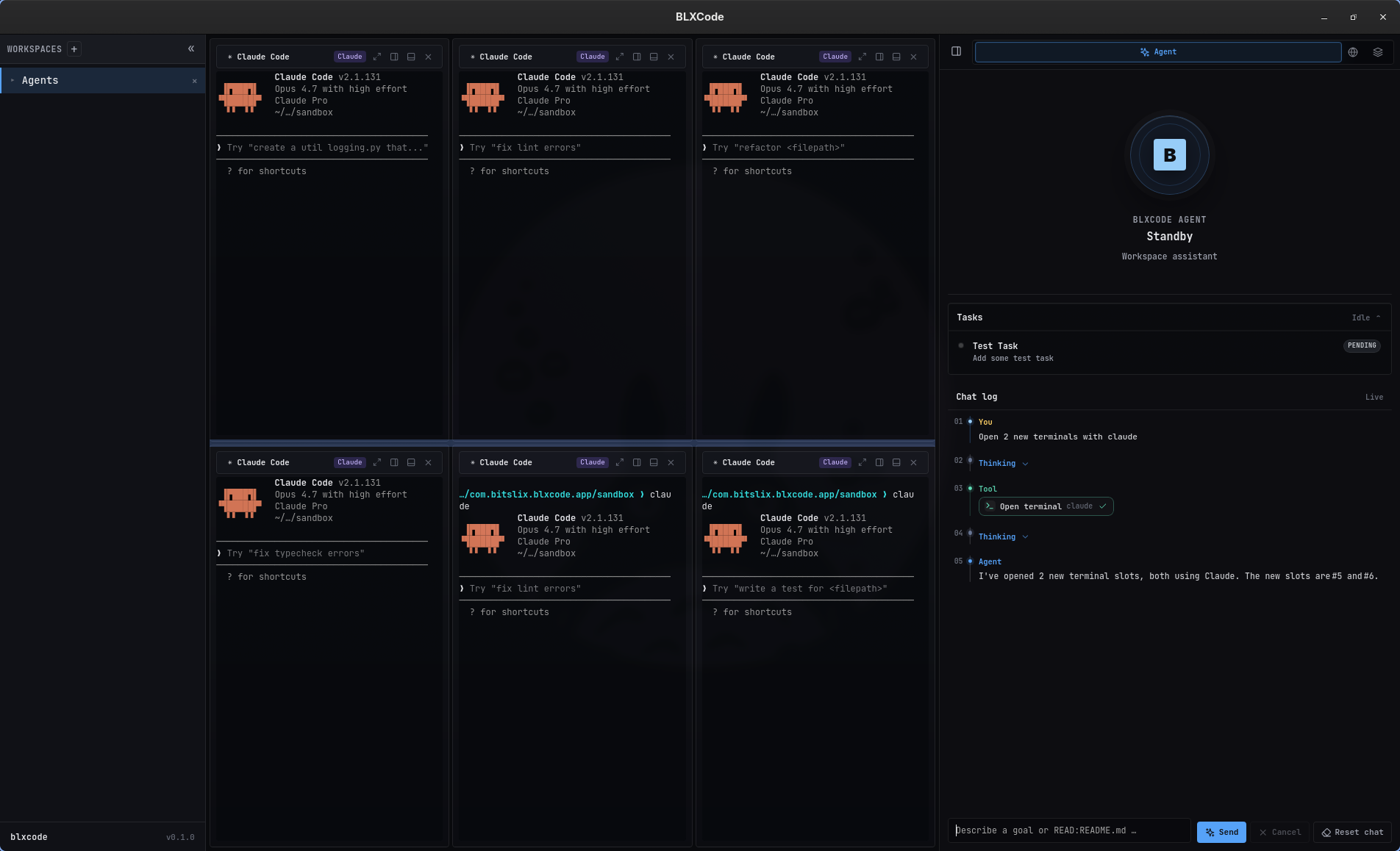
The backend spawns PTY sessions through portable-pty. On Unix-like systems it uses $SHELL, falling back to /bin/sh.
BLXCode injects a few environment variables into terminal sessions when needed:
-
BLX_TERMINAL_KEY: stable terminal/session mapping key. -
BLX_AGENT_SLUG: assigned agent label for the slot. -
BLX_SESSIONS_PATH: app-managed session mapping file path. -
BLX_NOTIFICATIONS_PATH: app-managed unread counter file for agent completion hooks. -
BLX_AGENT_CONTEXT_DIR: workspace-local directory (<workspace>/.blxcode/agent-context) where the handoff feature exports images and writes the manifest. Hooks may inspect this path; injection is always explicit via the BLXCode Agent or the titlebar dropdown. -
BLX_AGENT_CONTEXT_MANIFEST: JSON manifest path (<workspace>/.blxcode/agent-context/manifest.json) listing the most recently exported images (id, label, mime, size, on-disk filename).
These values support session capture, notification hooks, and the terminal-agent context handoff feature.
The left sidebar combines the workspace list with a resizable bottom panel for project tooling.
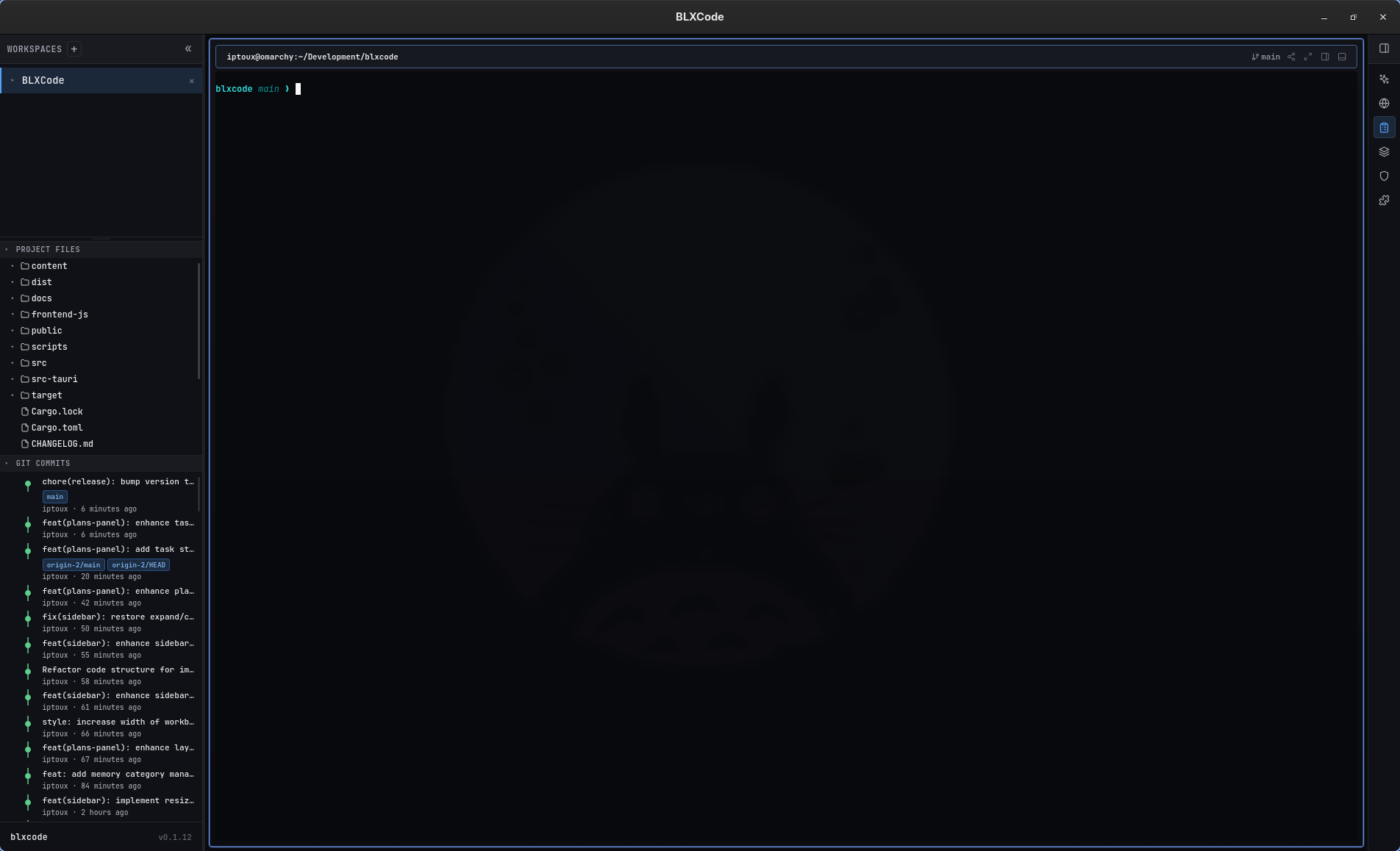
-
Sidebar width — drag the right edge of the sidebar (default 260px, persisted as
blxcode_sidebar_width_px_v1). -
Workspace list vs. bottom panel — drag the horizontal handle between the workspace list and the combined Explorer/Git block (default 50% of sidebar height,
blxcode_sidebar_panels_height_pct_v1). -
Project Files vs. Git — drag the inner handle between Explorer and graph (
blxcode_sidebar_explorer_height_pct_v1, clamped 15–85%).
- Lazy file tree for the active workspace
cwd(sandboxed under the workspace root). - Refresh toolbar action.
-
Show/hide hidden files — eye toggle for dot-prefixed entries (
blxcode_sidebar_explorer_show_hidden_v1, default off). - Click a folder row to expand or collapse; chevron still works without double-toggling.
- Click a file row to open it in a shared center preview tab. Images, video, Markdown and Mermaid render as rich content; text falls back to a monospaced view; binary types show an "unsupported" placeholder. See File Preview for the full feature matrix, byte caps, and security notes.
- Swim-lane commit graph (up to 100 commits) when
.gitis present. - Ref badges and author/time metadata.
- If
gitis not onPATH, the section stays visible with a hint instead of an empty graph.
Explorer and Git section open/collapsed state restores per workspace after reload.
Settings (center tab) → Workspace:
| Section | Purpose |
|---|---|
| Paths & sandbox | Default directory for new workspaces; agent sandbox root for file tools |
| Embedded browser | Default URL when opening the Browser tab |
| Category colors | Named color presets for Memory categories (sidebar dots, graph accents) |
One Save / Discard footer applies path and browser changes together. Category color edits save immediately when you change a swatch or label.
See Settings.
Each terminal cell exposes a share icon in its titlebar. The menu lists every live terminal in the workspace, a separator, and Send to BLXCode Agent.
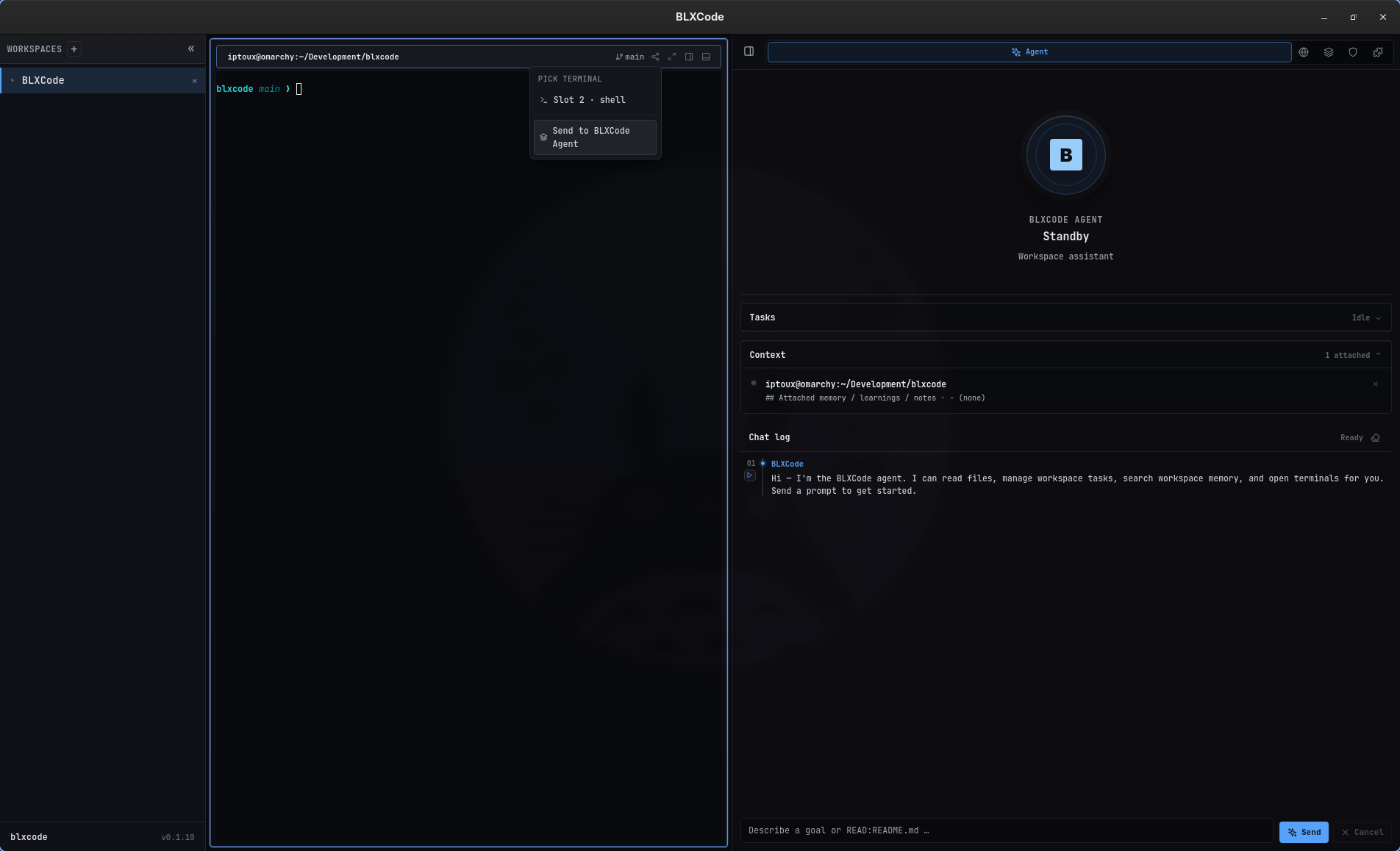
-
Pick a terminal → BLXCode renders a Markdown context block and writes it into that terminal's PTY. The block can include workspace root, attached memory/plans/tasks, and image paths. Image bytes are exported to
<workspace>/.blxcode/agent-context/images/with a JSON manifest; base64 is never written into the prompt. - Send to BLXCode Agent → attaches workspace context (from a terminal: slot title + preview; from Memory: selected note or category).
The same menu is available from the Memory Graph note preview (memory-graph-handoff.png in Memory And Tasks).
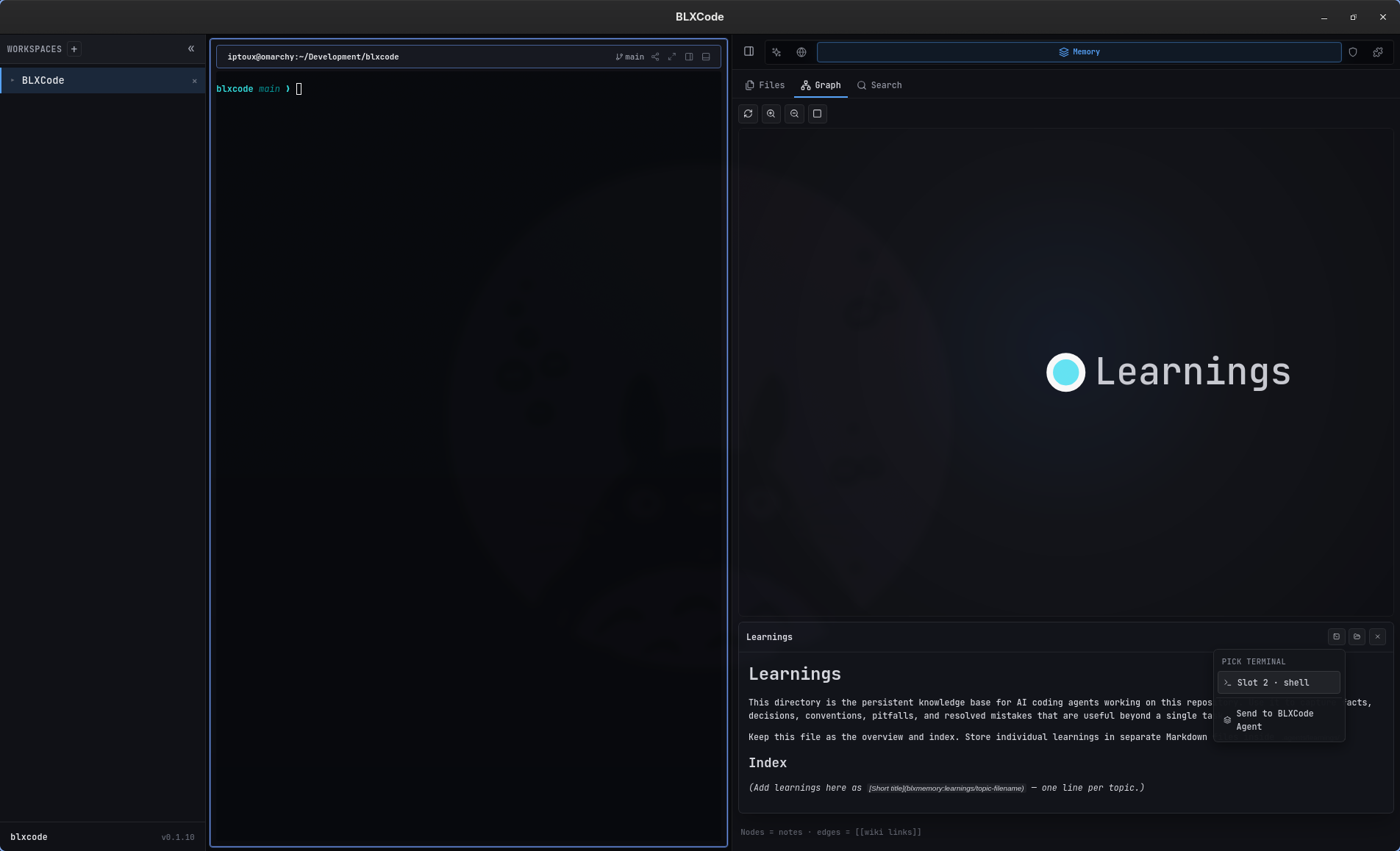
Feedback: successful handoffs show a bottom-right toast (optional) and optional short sound. Configure under BLXCode Settings → App → Notifications — see Keyboard Shortcuts. Errors always show an error toast.
The BLXCode Agent can trigger handoff via harness.send_agent_context with optional includeKinds: memory, plans, tasks, images (default: all four). The rendered Markdown includes an Attached plans / tasks section when those kinds are included. See Agent Providers.
With agent hooks installed, BLXCode records each terminal slot’s external agent session id in sessions.json. When you reopen a slot in the same workspace (same agent label and working directory), the launch command uses the provider’s resume syntax—for example claude --resume <id> or codex resume <id>—so you pick up where the CLI left off instead of starting a blank session.
Captured session titles appear on terminal chrome (for example Test session setup, Just a test, sandbox, Chat Pal), so a multi-slot grid gives you an at-a-glance overview of running agents across Claude, Codex, Cursor, and the rest of the fleet.
When agent hooks are installed (Harness → Agent hooks), each terminal CLI fires a Stop (or OpenCode session.idle) hook when a turn finishes. The hook increments an unread counter in notifications.json.
The workspace sidebar shows two badges per workspace:
| Badge | Meaning | Color |
|---|---|---|
| Active | Unread count on the focused terminal in that workspace | Same accent as the focused terminal’s agent |
| Total | Sum of unread counts across all terminals in the workspace | Orange |
Unread counts clear when you focus the terminal cell (click or tab into it). A short beep plays when a task completes in a background workspace or unfocused terminal.
Re-run Install agent hooks after upgrading blxcode so notify hooks are registered alongside title and session-capture hooks.
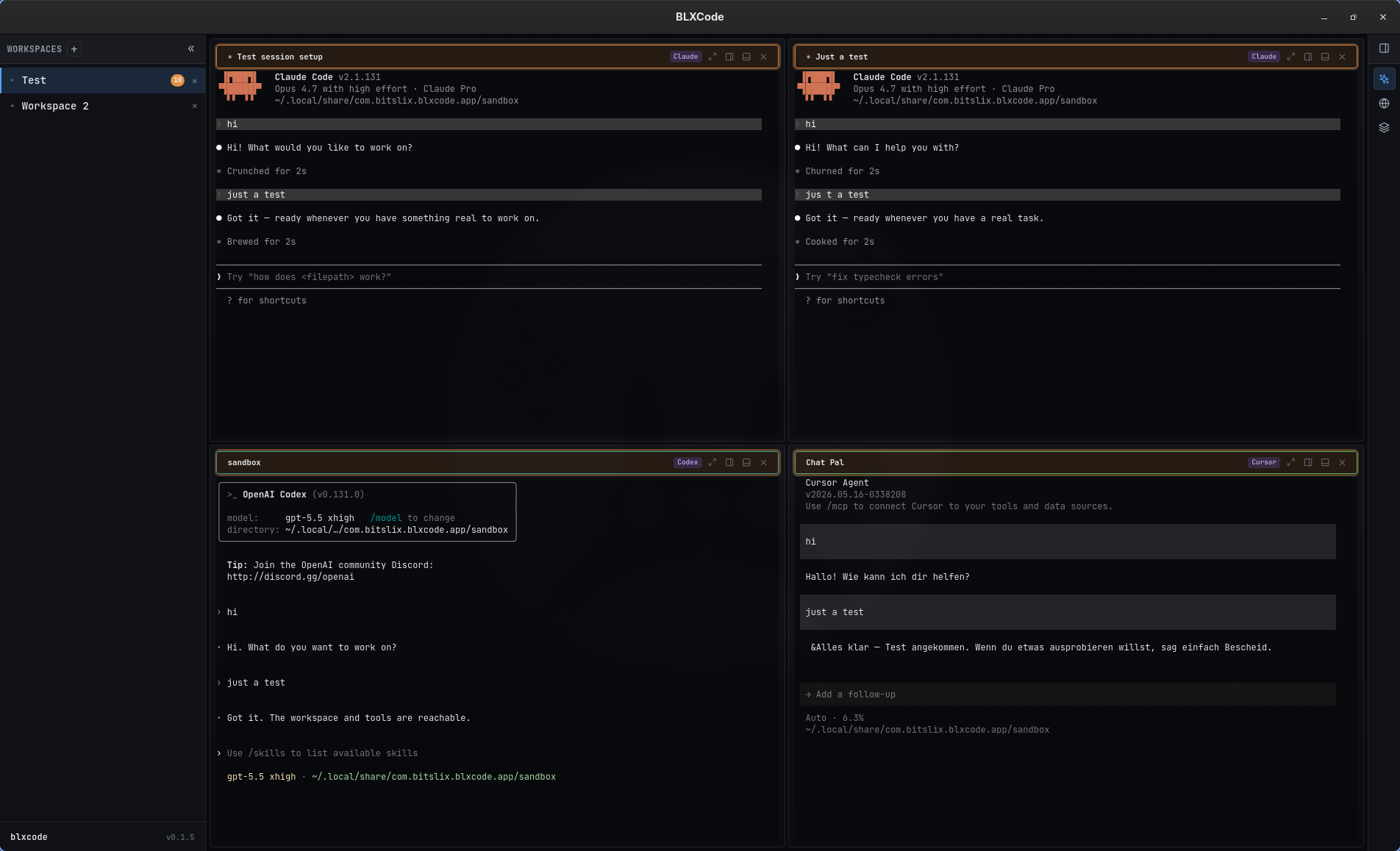
Example: four resumed sessions in a 2×2 grid; the Test workspace shows 6 active and 18 total unread completions.
BLXCode captures HTTP and HTTPS links from markdown, terminal integration events, and DOM clicks, then opens them in the embedded browser area.
On Windows and macOS, the backend can use native child webviews through Tauri unstable APIs. On Linux, BLXCode falls back to an iframe-based embedded surface because native child inset support is disabled.
Some websites block iframe embedding through X-Frame-Options or Content-Security-Policy: frame-ancestors. BLXCode probes these headers and can route around blocked embeds when possible.
Workbench state is saved through Tauri commands with a short debounce. BLXCode also performs a best-effort save when the window is closing.
Persisted state includes:
- Open workspaces.
- Active workspace.
- Recent workspaces.
- Sidebar and right-panel collapsed state.
- Right-panel width and active tab.
- Embedded browser tabs.
- Workspace terminal and pane layout.
- Agent timeline and compose draft.
If a saved snapshot has an unsupported schema version, BLXCode ignores it and starts with defaults rather than crashing.
- File Preview — image / video / Markdown / Mermaid renderers triggered from the sidebar
- Memory And Tasks — memory panel and graph handoff
- Plans — plan files included in handoff
- Keyboard Shortcuts — tmux/legacy chords and notification settings
-
Agent Providers —
harness.send_agent_context